
Need more screen space? Learning how to connect laptop to monitor takes about five minutes. You only need the right cable, the right input, and one display setting.
This guide covers Windows and Mac, plus fixes for a blank screen. Whether you want a bigger workspace or a better movie screen, the steps below work for both.
Which Cable Do You Need to Connect Your Laptop to a Monitor?
Before you try how to connect laptop to monitor setups, check which ports you have. The cable decides which signals travel between the two devices. It also decides whether one wire can charge your laptop.
| Cable | Best for | Watch out for |
|---|---|---|
| HDMI | Most monitors, carries video and audio | Needs an HDMI port on both ends |
| USB-C | Thin laptops, one-cable desks | Some USB-C ports do not output video |
| DisplayPort | Monitors with a DisplayPort input | Laptops often need a USB-C adapter |
HDMI is usually the most dependable choice. It avoids most USB-C compatibility problems. Choose USB-C only when the port shows a DisplayPort or Thunderbolt symbol. A charge-only USB-C cable carries no video at all.
How to Connect Laptop to Monitor: 4 Easy Steps
Connecting your laptop to an external monitor is simple once you have the right cable and display settings.
Step 1: Identify the Ports on Your Laptop and Monitor
Every guide on how to connect external monitor to laptop starts here. Look at the sides and back of both devices. Match a port on the laptop with a port on the monitor. If nothing matches, buy a simple adapter, such as USB-C to HDMI.
Step 2: Connect the Cable and Turn On the Monitor
Plug one end into the laptop and the other into the monitor. Then plug in the monitor’s power cable and switch it on. Keeping the monitor on before you open display settings helps Windows find it.
This stage of how to connect laptop to monitor is the quickest. Detection usually takes a few seconds.
Step 3: Select the Correct Monitor Input
Once your laptop and monitor are connected, make sure the monitor is receiving a signal from the correct input source.
- Turn on your external monitor.
- Locate the Input or Source button on the monitor, or open its on-screen settings menu.
- Select the input that matches your connection, such as HDMI 1, HDMI 2, DisplayPort, or USB-C.
- Wait a few seconds for your laptop screen to appear.
Many modern monitors automatically detect the connected device. However, if you see a No Signal message, check the selected input source and make sure the cable is securely connected at both ends.
Step 4: Choose Extend, Duplicate, or Second Screen Only
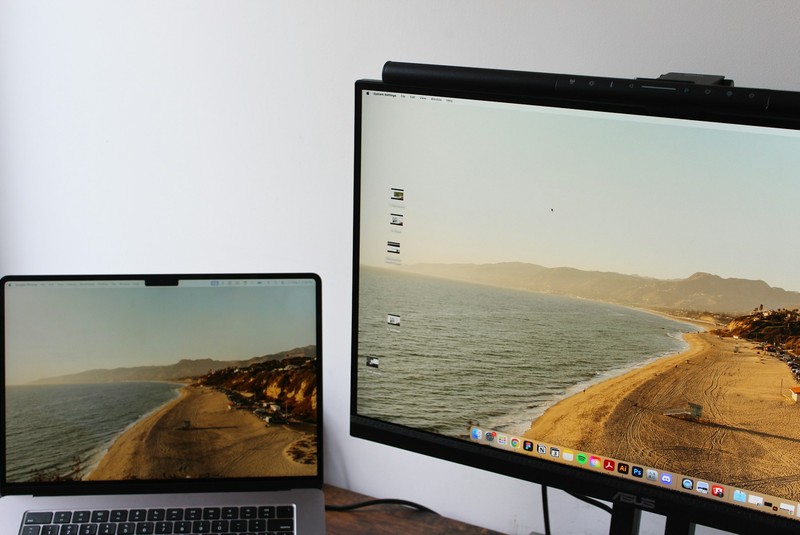
On Windows, press Windows + P to open the projection menu. This last part of how to connect a laptop to a monitor depends on your task. On a Mac, the next section covers it.
| Mode | What it does | Best for |
|---|---|---|
| Extend | Adds the monitor as extra workspace | Work and multitasking |
| Duplicate | Shows the same screen on both | Presentations |
| Second screen only | Turns off the laptop screen | Using the laptop closed or hidden |
| PC screen only | Keeps the monitor off | Going back to the laptop alone |
Most people should choose Extend. Presenters should choose Duplicate.
How Do You Adjust External Monitor Settings on Windows?
Once the picture appears, fine-tune it. Knowing how to connect a laptop to a monitor is only half the job. The layout matters just as much.
- Open Settings > System > Display.
- Drag the numbered screens so they match your real desk. Otherwise, your mouse will jump the wrong way.
- Open Multiple displays and pick Extend these displays or Duplicate these displays.
- Select the monitor, then open Advanced display to check its refresh rate.
A wrong refresh rate can push the signal into a lower-quality mode, especially over HDMI or through a dock. If the monitor does not appear, select Detect under Multiple displays.
>>> Read more: How to Download Netflix Movies on Laptop: Step-by-Step Guide
How Do You Set Up an External Monitor on a Mac?
Here is how to connect laptop to monitor when you use a MacBook. The physical steps are the same. Only the settings differ.
- Open the Apple menu > System Settings > Displays.
- Select the external display.
- Use the Use as menu to extend the desktop or mirror a display.
- Drag the display icons in the Arrange area to match your desk.
To mirror by dragging, hold Option and drag one display icon onto another. Apple notes the Arrange and Use as options appear only after an external display is connected. Extending suits work. Mirroring suits meetings.
Why Is Your Laptop Not Detecting the Monitor?
Even when you know how to connect external monitor to laptop, a blank screen can still happen. The cause is usually a cable, input, or setting problem. Work through these checks in order.
Check the Cable, Input Source, and Adapter
- Unplug the cable and plug it in again.
- Try another cable or another port.
- Connect straight to the laptop if you use a dock.
- Confirm the monitor input matches the cable.
- Test the monitor with another device.
Make Windows or macOS Detect the Display
On Windows, open Settings > System > Display > Multiple displays and select Detect. You can also press Windows + P and choose Duplicate or Extend. On a Mac, hold Option in Displays settings to reveal the Detect Displays button.
Check Graphics Drivers and Display Limitations
If you’re learning how to connect laptop to monitor but the external display remains blank, outdated graphics drivers could be the cause. Install the latest Windows updates and download the appropriate graphics driver from your manufacturer’s website.
If the screen stays blank, press Windows + Ctrl + Shift + B to reset the graphics driver. The screen may blink briefly. Also, check whether your laptop supports the monitor’s resolution and refresh rate.
| Problem | Likely cause | Fix |
|---|---|---|
| No video over USB-C | Port has no DisplayPort Alt Mode | Use HDMI or a port with video support |
| Dock shows nothing | Dock mode or cable issue | Plug the monitor straight into the laptop |
| Monitor works elsewhere | Driver problem | Update or reinstall the display driver |
>>> You might be interested in: How to Download YouTube Videos in Laptop: Offline vs. MP4
FAQs
Can You Charge Your Laptop Through the Monitor?
Yes, if both your laptop and monitor support USB-C Power Delivery (PD). A compatible USB-C cable can transmit video and charge your laptop simultaneously. However, make sure the monitor provides enough wattage to meet your laptop’s charging requirements.
Does a Longer Cable Lower Picture Quality?
Not in the way most people expect. Long cables usually cause flicker or signal dropouts, not blur. For 4K, many sources suggest keeping passive HDMI cables near 10 feet. Beyond roughly 25 feet, an active or optical cable is safer.
Why Does the Text Look Blurry on My Monitor?
Blurry text on an external monitor is often caused by incorrect resolution, unsuitable display scaling, or a poor-quality cable. Set the monitor to its native resolution, adjust the scaling settings, and use Windows ClearType to improve text clarity.
Conclusion
Now you know how to connect laptop to monitor without guesswork. Match the ports, plug in the cable, pick the right input, and choose Extend or Duplicate. If the screen stays blank, check the cable, the input, and the drivers. Start with HDMI for the smoothest first setup.