A quick screenshot can save time when you need to share an error message, receipt, or presentation slide. The confusing part on Lenovo laptops is often the keyboard because the Print Screen key can appear in different places depending on the model.
If you’re learning how to screenshot on Lenovo laptop models running Windows, you do not have to rely on one specific key. This guide explains the main Windows shortcuts, where each screenshot is saved, and what to check when PrtSc does not behave as expected.
1. Which Shortcut Fits What You Want to Capture?
If you want to know how to screenshot on a Lenovo laptop, first make sure the laptop is running Windows. The screenshot tools below come from Windows, while the location of the Print Screen key varies by Lenovo model.
| Shortcut | What it does | Where the capture goes |
|---|---|---|
| PrtSc | On current Windows 11 systems, usually opens screen snipping; if that setting is disabled, it captures the full screen | Clipboard |
| Windows + PrtSc | Captures the full screen and saves it automatically | Pictures > Screenshots |
| Alt + PrtSc | Active window only | Clipboard |
| Windows + Shift + S | Opens Rectangle, Window, Full screen, or Freeform snipping | Clipboard and Snipping Tool’s Screenshots folder when autosave is enabled |
A clipboard capture can be pasted into Paint, Word, email, or another app with Ctrl + V.
If you want a screenshot saved as a file without opening another app, Windows + PrtSc is the simplest option.
For selecting only part of the screen, Windows + Shift + S is usually more useful. Snipping Tool can also automatically save captures, and you can change that behavior or the default folder in its Settings.
2. Why Does PrtSc Do Nothing on Some Lenovo Keyboards?
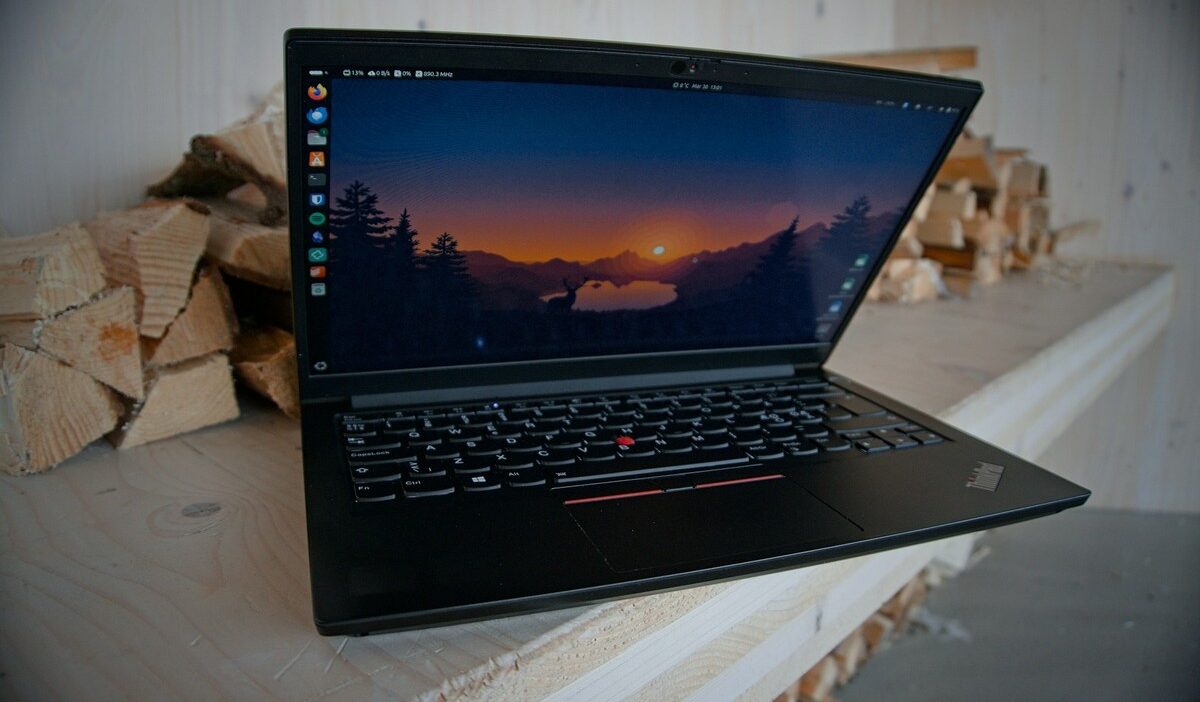
Lenovo does not use one identical keyboard layout across every ThinkPad, IdeaPad, Yoga, or other laptop family. The Print Screen function can therefore appear in different places or use a different key combination.
Here are the main possibilities to check:
- PrtSc key: Look for PrtSc, PrtScn, Print Screen, or a screenshot symbol on the keyboard.
- Fn + PrtSc: Some ThinkPads use this combination to open Snipping Tool. Lenovo documents it on several ThinkPad generations.
- Fn Lock: On ThinkPads where screenshot functions share the top function row, Fn + Esc can switch between the special function and standard F1-F12 behavior.
- Dedicated screenshot keys: Newer ThinkPads, including the X1 Carbon Gen 13, can provide separate top-row functions for Print Screen and opening Snipping Tool.
- External keyboard: A USB or Bluetooth keyboard follows its own key layout, so check that keyboard rather than the laptop’s markings.
If your Lenovo keyboard layout is unclear, check the User Guide for your exact model on Lenovo Support.
You can also bypass the Print Screen key completely with Windows + Shift + S, which works through Windows rather than a Lenovo-specific keyboard shortcut.
3. How Does Snipping Tool Give You More Control?
PrtSc is fast but blunt. In contrast, Snipping Tool lets you choose the exact area and clean up the image before you share it. It is also the most flexible answer to how to take a screenshot on Lenovo laptop models.
- Press Windows + Shift + S. The screen dims and a small toolbar appears at the top.
- Pick a mode: Rectangle, Window, Full screen, or Freeform.
- Drag or click to capture. The snip goes to the clipboard, and a preview pops up in the corner.
- Click the preview to open the editor.
- Mark it up with the Pen, Highlighter, Shapes, or Image crop tools.
- Press Ctrl + S or select Save as to pick a folder and file name.
Rectangle suits most jobs for how to screenshot on Lenovo laptop. Freeform works for odd shapes, while Window grabs one app without the taskbar. In addition, Snipping Tool can autosave snips, so you do not lose an image you forgot to paste. Choose it whenever you need to hide personal details before sharing.
>>>Read more: How to Close All Open Tabs on My Phone
4. Where Does Each Screenshot Go?
When you screenshot on a Lenovo laptop, the location depends on the shortcut you press.

| Method | Destination |
|---|---|
| PrtSc | Clipboard, or the Snipping Tool workflow when Windows is configured to open screen snipping |
| Alt + PrtSc | Clipboard |
| Windows + PrtSc | Pictures > Screenshots |
| Windows + Shift + S | Clipboard and, with Snipping Tool autosave enabled, the Screenshots folder |
| Snipping Tool Save as | Any folder you choose |
A screenshot you got from how to screenshot on Lenovo laptop stored only on the clipboard is not yet a normal image file. Paste it into an app such as Paint with Ctrl + V, then save it.
Snipping Tool can automatically save screenshots. Open its Settings if you want to change autosaving or select a different default Screenshots folder.
5. What Should You Check When a Shortcut Fails?
If a screenshot shortcut from how to screenshot on Lenovo laptop does not behave as expected, start with the Windows and keyboard settings before assuming the hardware is faulty.
| Problem | Likely cause | Fix |
|---|---|---|
| PrtSc opens Snipping Tool | Windows 11‘s default Print Screen behavior | Go to Settings > Accessibility > Keyboard and change Use the Print Screen button to open screen snipping if you prefer the older behavior |
| Nothing appears after PrtSc or Alt + PrtSc | The image may only be on the clipboard | Open Paint and press Ctrl + V |
| Windows + Shift + S does nothing | Snipping Tool or Windows may need attention | Restart Snipping Tool or Windows and check Microsoft Store for app updates |
| Lenovo Print Screen key behaves differently | Model-specific Fn or function-row layout | Check the key icons, try the documented Fn combination, or open your model’s Lenovo User Guide |
| Built-in key fails but an external keyboard works | Keyboard mapping or hardware issue is possible | Check Lenovo Vantage or keyboard settings before considering hardware service |
When the keyboard layout is the problem, Windows + Shift + S is usually the easiest workaround because it does not depend on the Lenovo Print Screen key.
6. Which Screenshot Method Should You Use?
Now that you know each option, here is how to screenshot on Lenovo laptop for common tasks.
- Full screen: Windows + PrtSc, because it saves a file instantly.
- Selected area: Windows + Shift + S in Rectangle mode.
- Active window: Alt + PrtSc for speed, or Window mode in Snipping Tool.
- Editing: Snipping Tool, for crop, pen, and highlighter.
- Lenovo keyboard issues: Windows + Shift + S, since it needs no PrtSc key.
>>> Read more: How to Reset HP Laptop: Different Reset Options Easy Explained
7. FAQs
Is It Possible to Screenshot Without the Print Screen Key?
Yes. Windows + Shift + S lets you screenshot on a Lenovo laptop without PrtSc. You can also open Snipping Tool from the Start menu and click New. On Yoga 2-in-1 models, a pen or touch input makes selecting an area easier.
How Do You Capture a Whole Scrolling Web Page?
Snipping Tool only captures what is visible. For a long page, open it in Microsoft Edge and press Ctrl + Shift + S. Then choose the full-page capture option to save the entire page.
Which Shortcut Records the Screen Instead of Taking a Picture?
Press Windows + Shift + R to record a selected area as video. By default, Windows saves the recording as an MP4 file in the Screen Recordings folder inside Videos.
Does Game Bar Save Screenshots Somewhere Else?
Yes. Windows + Alt + PrtSc takes a Game Bar screenshot of the active app. It saves as a PNG in the Captures folder inside Videos, not in Pictures.
Conclusion
Learning how to screenshot on Lenovo laptop models is mostly about choosing the right Windows shortcut rather than finding one universal Lenovo key.
Use Windows + PrtSc when you want a full-screen file saved automatically. Use Windows + Shift + S when you need to select part of the screen, and Alt + PrtSc for an active window.
If PrtSc behaves differently on your Lenovo keyboard, check the model’s Fn layout and Windows Print Screen setting before assuming the key is broken.