
A dirty display is more than an eyesore. Dust and fingerprints make text harder to read, and the wrong cleaner can strip the coating for good. This guide shows how to clean laptop screen safely with tools you probably own. In addition, it covers stubborn smudges, alcohol, keyboards, and products to avoid.
What Do You Need to Clean a Laptop Screen Safely?
Most screen damage comes from the wrong tools, not from dirt. So, gather a short kit before you learn how to clean laptop screen surfaces in detail.
| Item | Why it helps |
|---|---|
| Two microfiber cloths | Soft and lint-free. Use one for damp wiping and one for buffing. |
| Distilled water | It has no minerals, so it leaves no white streaks. |
| 70% isopropyl alcohol | Optional. Keep it for oily or stubborn marks only. |
Skip paper towels and tissues. Lenovo warns that they can scratch the screen.
How Do You Clean a Laptop Screen in 4 Steps?
Now, let’s put the kit to work. Here is how to clean laptop screen dust and smudges in four steps, and the order matters.
Step 1: Shut Down and Unplug the Laptop
Powering off protects the laptop if liquid slips inside. Shut it down, unplug the charger, and disconnect accessories. Then, let it cool. A warm screen dries cleaner too fast and leaves streaks.
Step 2: Remove Loose Dust With a Dry Microfiber Cloth
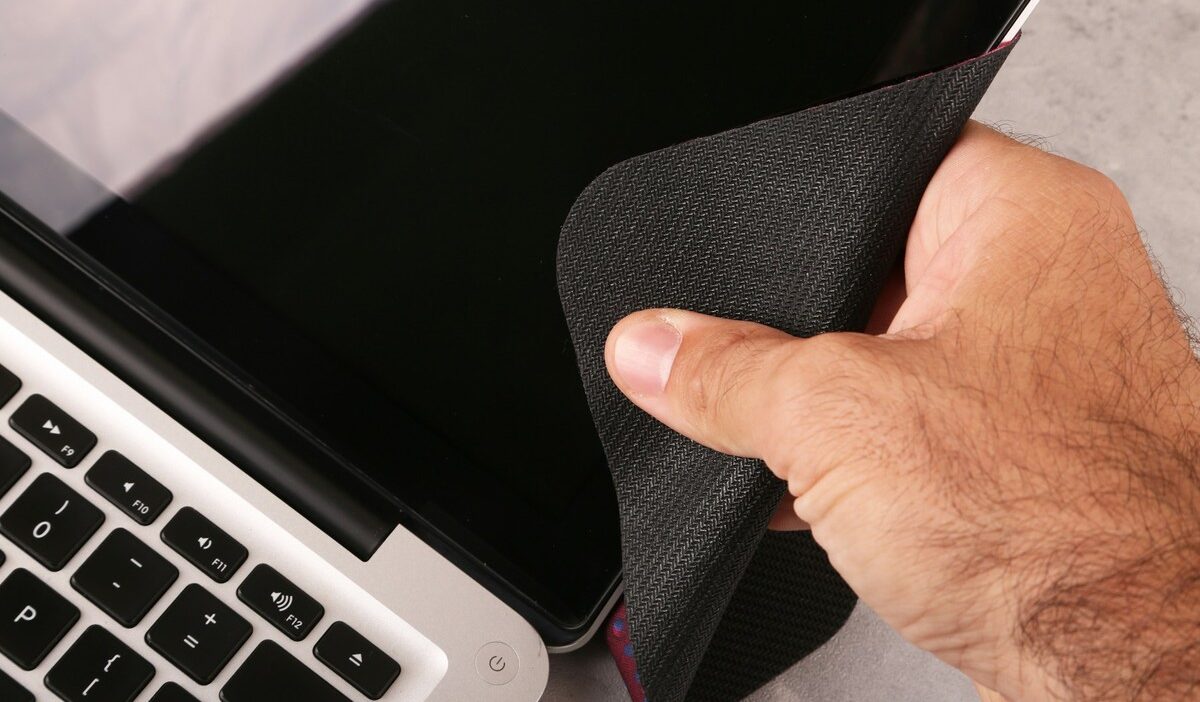
Dust is abrasive. A damp cloth can drag grit across the glass and cause fine scratches. Therefore, wipe the screen first with a dry microfiber cloth in broad, gentle circles. Use light pressure, because pressing hard can harm the panel.
Step 3: Remove Smudges With a Slightly Damp Cloth
Dampen a clean microfiber cloth with distilled water. Wring it out until it feels damp, not dripping. Then, wipe gently and use a fresh part of the cloth on each pass. Never spray liquid straight onto the screen, because Apple warns it can drip inside the display.
Step 4: Allow the Screen to Dry Completely
Buff right away with the dry cloth. Then, let the screen air-dry before you power on or close the lid. Dell says surfaces must be fully dry first. Otherwise, a wet screen leaves new marks on the keyboard side.
>>> Read more: How to Reset HP Laptop: Different Reset Options Easy Explained
How Can You Remove Fingerprints and Sticky Residue?
Knowing how to clean laptop screen oils and adhesives takes more than dusting.
Removing Fingerprints and Oily Smudges
Start with the damp, distilled-water cloth from Step 3. If oil remains, Lenovo suggests adding a little white vinegar to the distilled water. Rub in small circles with light pressure, then buff dry. Touchscreen users should repeat this often, since fingers add oil daily.
What If Something Sticky Is Stuck to the Screen?
Stickers, tape, and candy leave adhesive that smears when rubbed dry. Soften it first by pressing a damp cloth on the spot for a few seconds. If it stays, use a cloth corner lightly dampened with 70% isopropyl alcohol. Avoid acetone, which Apple warns against, and never scrape with a fingernail or blade.
Can You Use Alcohol or Other Cleaning Solutions on a Laptop Screen?
Brands do not fully agree on how to clean laptop screen stains with alcohol. Apple’s cleaning guidance allows a gentle wipe with 70% isopropyl alcohol, while Lenovo and some Dell pages prefer water. As a result, start with water and use alcohol only when needed.
Is 70% Isopropyl Alcohol Safe?
For most laptop displays, yes, when used sparingly. Wondering how to clean my laptop screen with it? Dampen one corner of the cloth, wipe lightly, and let the screen air-dry. However, check your manual first if the display is nano-texture, OLED, or specially coated. Apple, for example, gives separate steps for nano-texture screens.
Should You Use a Commercial Screen Cleaner?
A screen spray works well if it is ammonia-free. Dell advises avoiding ammonia, and Apple says to use cleaners made for screens. Spray the cloth, not the display.
How Do You Clean a Laptop Screen and Keyboard Together?
Crumbs and dust from the keys end up on the display, so one session saves time. Here is how to clean laptop screen and keyboard together without letting liquid into either one.

Clean the Screen First
Always start with the screen. That way, debris from the keyboard cannot land on a freshly cleaned display. Use the same method for how to clean laptop screen dust and smudges, then move down to the keys.
Remove Dirt From the Keyboard
- Tilt the laptop and use short bursts of compressed air between the keys. Hold the can upright.
- Skip the vacuum, because HP says it can create static.
- Dampen a cotton swab with 70% isopropyl alcohol and run it between the keys, avoiding the printed letters.
- Wipe the keycaps with a barely damp cloth. Never let liquid drip between the keys.
What Should You Never Use on a Laptop Screen?
Knowing how to clean laptop screen safely also means knowing what to skip. Dell warns that harsh products can cause cloudiness, discoloration, or permanent damage.
| Avoid | Why |
|---|---|
| Windex or glass cleaner | Ammonia can damage the anti-glare coating. |
| Acetone or nail polish remover | Apple and HP warn that it harms the finish. |
| Bleach or hydrogen peroxide | Apple and HP list both as unsafe for screens. |
| Paper towels or tissues | They can scratch the surface. |
| Direct spraying | Liquid can run behind the bezel. |
How Often Should You Clean Your Laptop Screen?
Cleaning your laptop screen about once a week is a reasonable routine, although the ideal frequency depends on how often you use it. HP recommends weekly cleaning for the screen, keyboard, and trackpad, with monthly compressed-air cleaning for the keyboard.
If you use a touchscreen, travel frequently, or notice fingerprints and dust buildup, you may need to clean the display more often.
Once you know how to clean laptop screen surfaces safely, regular maintenance takes only a few minutes. Use a clean microfiber cloth and avoid excessive pressure to protect the display.
FAQs
Does a Touchscreen Laptop Need a Different Method?
Mostly no. The same steps for how to clean laptop screen oils work, but touchscreens collect oil faster, so wipe them more often. Coated or nano-texture panels may have special instructions from the maker.
Are Disinfecting Wipes Safe on a Laptop Screen?
Apple says 70% isopropyl alcohol wipes and Clorox Disinfecting Wipes can be used gently on a display. However, wipes are made for germs, not fingerprints, so a damp microfiber cloth works better for daily smudges.
Why Does My Laptop Screen Have Streaks After Cleaning?
Streaks usually come from tap water minerals, too much liquid, or a dirty cloth. Cleaning a warm screen also leaves marks. Repeat how to clean laptop screen steps with distilled water, a barely damp cloth, and a fresh dry cloth for buffing.
Can Cleaning Fix Dead Pixels or Pressure Marks?
No. Cleaning removes surface marks only. Pressure marks are permanent damage to the LCD layer, and dead pixels cannot be revived. A stuck pixel may sometimes recover. To prevent pressure marks, place a thin microfiber cloth between the screen and keyboard when you close the lid.
Conclusion
Now you know how to clean laptop screen without harm. Power off, dust first, wipe with a barely damp microfiber cloth, and let it dry fully. Use alcohol sparingly and never reach for glass cleaner. Repeat weekly, and your display stays clear.