
Why is my phone working but the screen is black iPhone users often ask when the device still rings, vibrates, or responds even though the display shows nothing. In that situation, the phone may still be running, while the problem comes from a temporary software freeze, overheating, the display itself, or another internal component.
The key is to separate a screen problem from a full device failure before trying more aggressive fixes. Start with the checks below to see whether your iPhone is still responsive and which next step makes the most sense.
1. How to Confirm Your iPhone Is Actually Still On
Before attempting any fix, confirming whether the iPhone is still running narrows down the cause significantly. These checks take under two minutes.
Call It From Another Phone
Call the iPhone from another device. If it rings or vibrates while the screen remains black, the phone is clearly still powered on.
If the call goes straight to voicemail, however, that alone does not prove the iPhone is off because network conditions, Focus settings, call forwarding, or other call settings can produce the same result.
Ask Siri Something
Hold the side button (or home button on older models) and ask Siri a question.
If Siri responds with audio, the phone is definitely on, and the phone is still running and able to respond. The display may be stuck or failed, but the phone itself is functional.
If voice activation is enabled, you can also try saying “Siri” or “Hey Siri,” depending on the model, language, region, and Siri settings.
Plug It Into a Computer
Connect the iPhone to a Mac or PC. If Finder on Mac or the Apple Devices app on Windows detects it, the iPhone is powered and communicating with the computer even if the display remains black.
Depending on the device’s trust status and condition, however, a computer may not always recognize it normally.
2. Fix an iPhone With a Black Screen
Once the phone is confirmed to be on, or if there is no way to confirm it, three quick fixes resolve most why is my phone working but the screen is black iPhone situations that are software-related.
Force Restart the Correct iPhone Model
Force restarting is different from a normal restart. It interrupts the running software and forces the processor to reboot, which clears most frozen states. The button combination depends on the model:
- iPhone 8 and later (including all Face ID models): press and quickly release Volume Up, press and quickly release Volume Down, then press and hold the Side button until the Apple logo appears. Keep holding the Side button until the Apple logo appears; this may take longer than 10 seconds.
- iPhone 7 and 7 Plus: press and hold both the Volume Down button and the Sleep/Wake button simultaneously until the Apple logo appears.
- iPhone 6s and earlier: press and hold both the Home button and the Sleep/Wake button simultaneously until the Apple logo appears.
The Apple logo appearing on an otherwise black screen confirms the force restart worked. If why is my phone working but the screen is black iPhone remains the same throughout the button sequence, proceed to the charging step.
>>>Read more: Why Won’t My AirPods Connect to My Phone? Fixes That Work
Charge the iPhone and Try Again
If the iPhone may simply be out of power, connect it to a working charger and leave it charging. Apple recommends charging an iPhone that will not turn on for one hour before trying again.
If a low-battery image appears, check the charging cable, adapter, and port, then allow it to continue charging for at least 30 minutes or until it starts.
After charging, try the appropriate force-restart sequence again if the screen remains black.
Disconnect Accessories and Check the Temperature
Disconnect charging cables and other accessories while troubleshooting for why is my phone working but the screen is black iPhone. If the iPhone feels unusually hot, move it away from direct sunlight or other heat sources and allow it to cool naturally before trying again.
Apple notes that an iPhone display can dim or go black when the device becomes too hot. Once the temperature returns to its normal operating range, normal operation should resume.
3. Use Recovery Mode if the Screen Stays Black
If force restarting and charging do not help and the problem appears to involve iOS rather than a physically damaged display, Recovery Mode can be the next software troubleshooting step for why is my phone working but the screen is black iPhone. It lets a Mac or Windows PC attempt to reinstall or restore iOS.
- Connect to Finder or Apple Devices. On a Mac running macOS Catalina or later, use Finder. On a current Mac, use Finder. On a Windows PC, use the Apple Devices app. Older systems may still use iTunes where applicable.
- Enter Recovery Mode. Connect the iPhone with a cable while it is off or unresponsive, then use the same force restart button sequence for the model above. If the display never shows the recovery screen but the computer detects the iPhone, follow the prompts shown on the computer. If neither the screen nor computer responds, service may be necessary.
- Choose Update first. In Finder or iTunes, a prompt appears asking whether to Update or Restore. If the computer offers both Update and Restore, trying Update first may allow iOS to be reinstalled without erasing your personal data. If Update fails and Restore is required, be aware that Restore erases the device.
- Use Restore only if Update fails. If the Update option does not resolve the issue, Restore erases the phone completely and installs a fresh copy of iOS.
- Data loss risk. Update should preserve data. Restore erases everything on the device. If the last iCloud backup was recent, data is recoverable after a Restore. If no backup exists, data that has not already synced to iCloud or another service may be lost after a Restore.

4. Signs the Display or Internal Hardware Has Failed
Some of why is my phone working but the screen is black iPhone situations are not software problems. These patterns suggest a hardware failure that requires physical repair rather than software recovery.
- The phone rings or vibrates when called but shows no image at all during or after the restart sequence.
- The black screen started immediately or shortly after a drop, even if no visible crack appeared on the glass.
- The screen flashes, shows lines, develops unusual colors, or displays an intermittent image before going black, which can indicate a display-related hardware problem.
- A computer recognizes the phone in Finder or iTunes but the screen never activates during any step of the process.
- The phone body is swollen, the display is separating from the frame, or there is unusual heat coming from the screen area. These require urgent professional attention.
- If the battery appears swollen or the display is lifting from the frame, stop charging and using the iPhone and arrange professional service.
>>> Read more: How to Wake Someone Up Over the Phone Safely and Effectively
5. Protect Your Data Before Repair or Restore
Understanding what each step does to the data on the phone helps avoid unnecessary data loss when fixing why is my phone working but the screen is black iPhone:
- A force restart does not erase any data. It only interrupts the running software and reboots the system.
- The Recovery Mode Update option reinstalls iOS and should preserve personal data, though it cannot be guaranteed when the system is in a failed state.
- The Recovery Mode Restore option erases everything and should only be used when Update has already been tried and failed.
- Avoid repeatedly entering the passcode when you cannot see the screen. Accidental incorrect attempts can temporarily disable access and make troubleshooting more difficult.
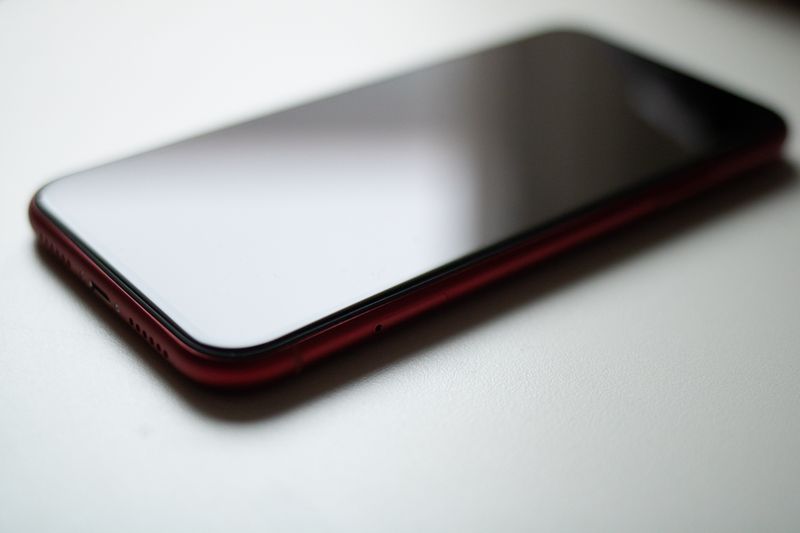
6. When It’s a Hardware Problem That Needs Professional Repair
If the iPhone continues to ring, vibrate, or connect to a computer but the display remains black after a force restart and appropriate software troubleshooting, a display or other internal hardware problem becomes more likely.
A drop, liquid exposure, visible screen damage, battery swelling, or persistent display artifacts also point toward hardware rather than a temporary software freeze.
Apple Authorized Service Providers and Apple Stores can run a diagnostic to confirm which component has failed before any repair is quoted.
How do I fix the black death on my iPhone when it turns out to be hardware? The answer is the same regardless of model: professional replacement of the failed component.
Attempting display repairs without experience risks further damage to the phone’s internal components.
7. FAQs
How Do I Fix the Black Screen of Death on My iPhone?
Start with a force restart using the correct button sequence for the iPhone model. If that fails, charge with a known-good cable and wall adapter for ten minutes and try again.
What to Do If your iPhone Screen is Black but Still Vibrates??
Vibration indicates that the iPhone is still receiving power and responding to some activity. Try a force restart first. If the phone continues to vibrate, ring, or respond to Siri while the screen remains completely black, a display-related problem becomes more likely.
Why Is My Phone Screen Black but the Phone Is Still On?
A black screen while the iPhone remains active can result from a software freeze, overheating, display damage, or another internal hardware issue. Start with a force restart and charging; if the phone still responds but never displays an image, professional diagnosis may be needed.
Does a Black Screen Mean I’ll Lose My Data?
Not necessarily. A force restart does not erase your data, and a Recovery Mode Update is intended to reinstall iOS without erasing the device. A Restore does erase the iPhone, so check whether you already have an iCloud or computer backup before choosing that option.
Conclusion
A black screen does not automatically mean the iPhone is dead or that your data is gone. The way the device behaves while the display is dark matters more, since ringing, vibration, Siri responses, or computer detection can help show whether the problem is software-related or points to hardware.
When figuring out why is my phone working but the screen is black iPhone, the safest approach is to move from simple fixes to more invasive ones. Start with a force restart and proper charging, then consider Recovery Mode only if needed.
If the phone still responds but the display never returns, professional repair is usually the better next step, especially if preserving your data matters.