Why won’t my AirPods connect to my phone? In most cases, the problem comes from something simple, such as Bluetooth settings, low battery, outdated software, or pairing data that needs to be refreshed.
The right fix depends on whether your AirPods are not showing up, failing to pair, or disconnecting right after they connect.
This guide walks through the steps in order, from quick checks to model-specific resets for AirPods and AirPods Max.
1. Quick Checks Before You Troubleshoot
A few things take under a minute to verify and resolve the majority of connection problems before any deeper troubleshooting is needed.
- For AirPods or AirPods Pro, make sure both earbuds are in the charging case, and the case has a charge. For AirPods Max, charge the headphones first. AirPods will not connect if the battery is critically low. Open the case near the iPhone to check the charge level displayed on the screen.
- Confirm Bluetooth is on. Confirm Bluetooth is on. Go to Settings > Bluetooth and make sure Bluetooth is enabled, then keep that screen open while trying to connect.
- Check that the iPhone is not connected to a different audio device. If another Bluetooth speaker, headset, or car system is already selected as the audio output, your AirPods may pair but not play audio automatically. Disconnect the other device first.
- Check whether the AirPods are still linked to someone else’s Apple Account. If they were previously used by another person, that person may need to remove them from their Apple Account before all setup and Find My features work normally.
2. Why Won’t My AirPods Connect to My Phone?
If the quick checks do not resolve the issue, work through these fixes in order. Each one addresses a specific cause of connection failure.
Make Sure Bluetooth Is On and Updated
Toggle Bluetooth off and back on from Settings > Bluetooth. This resets the Bluetooth stack without restarting the phone and often clears a temporary connection glitch.
While in Settings, also check for any pending iOS updates under General, Software Update. Updating iOS can also help if the issue is related to software compatibility or a temporary system bug.
Charge Both AirPods and the Case
Place both AirPods in the case and connect the case to a charger. Leave them charging for several minutes, then try again once the case or headphones show enough battery.
An AirPods with a critically low charge may appear in the battery widget but fail to complete the Bluetooth handshake. The case also needs sufficient charge to support the connection process when the lid is opened near the phone.
Close and Reopen the Case Lid
With the AirPods inside and the case near the iPhone, close the lid, wait 15 seconds, then open it again. This triggers the automatic pairing animation on the iPhone screen.
If the animation does not appear, move the case closer to the phone (within a few centimeters) and try again. The automatic connection relies on proximity and the lid-open trigger to initiate.
Put AirPods in Pairing Mode Manually
If the automatic pairing prompt does not appear, the AirPods can be put into manual pairing mode. Place both AirPods in the case and close the lid.
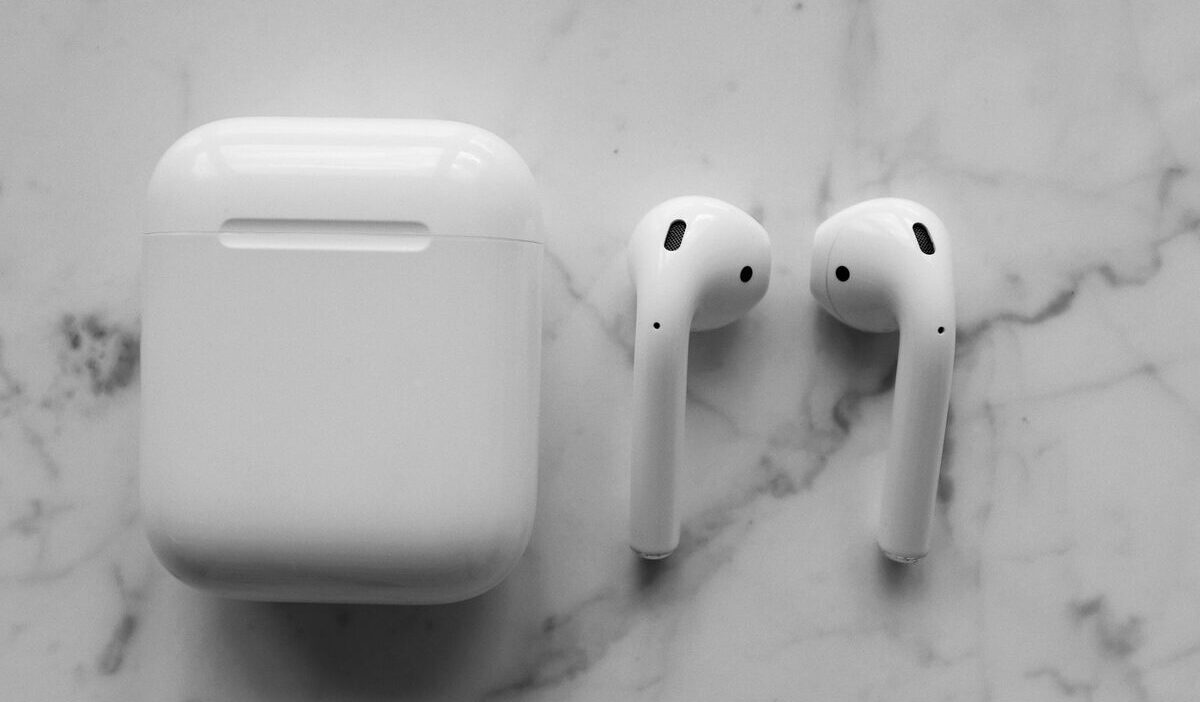
For most AirPods models, open the case with the AirPods inside, hold it near the iPhone, then press and hold the setup button on the back until the status light flashes white. Open the lid near the iPhone and the connection prompt should appear.
On iPhone, if the prompt does not appear automatically, go to Settings, Bluetooth, and look for the AirPods in the device list to connect manually.
Reset Your AirPods
Before resetting, Apple recommends going to Settings > Bluetooth, tapping the More Info button next to the AirPods if they appear, then tapping Forget This Device. This is the most thorough software fix available.
To reset AirPods 1, 2, 3, AirPods Pro 1, or AirPods Pro 2, place both AirPods in the case, close the lid, wait 30 seconds, open the lid, then press and hold the setup button for about 15 seconds until the status light flashes amber, then white.
For AirPods 4 and AirPods Pro 3, Apple gives a different reset method: open the lid, double-tap the front of the case while the status light is on, double-tap again when the light flashes white, then double-tap a third time when it flashes faster. The reset is complete when the light flashes amber, then white.
Open the case near the iPhone and follow the on-screen pairing prompt. After pairing, AirPods can become available on supported Apple devices signed in to the same Apple Account, but this depends on iCloud, software version, and model support.
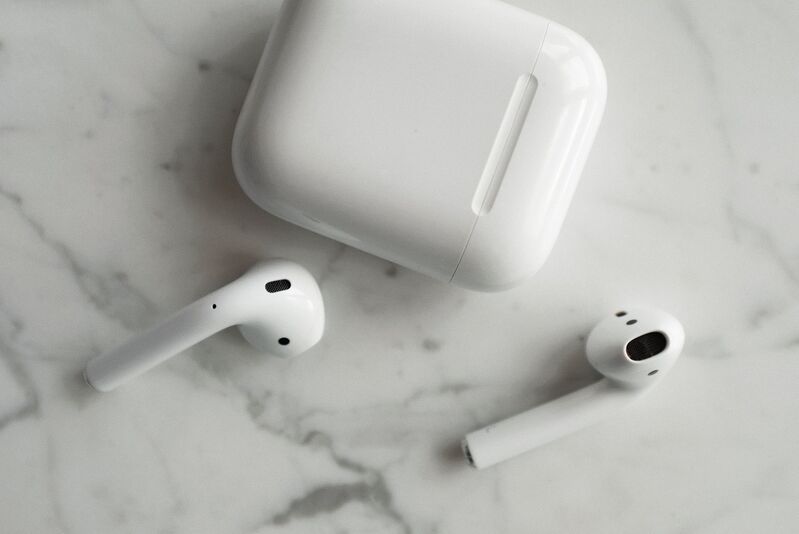
Note: AirPods 4 and AirPods Pro 3 do not use the same setup-button step. Apple says to open the case with the AirPods inside, hold it next to the device, then double-tap the front of the case until the status light flashes white.
3. Fixes for AirPods Max Connection Problems
If wondering why won’t my AirPods Max connect to my phone, the troubleshooting process is similar to AirPods but with a few differences in how the reset works and where the pairing controls are located.
Before restarting or resetting AirPods Max, Apple recommends charging them to at least 50%.
For manual pairing, take AirPods Max out of the Smart Case, then press and hold the noise control button for about 5 seconds, or until the status light flashes white. On the iPhone, go to Settings > Bluetooth and select AirPods Max if the setup animation does not appear.
For a restart or reset, the buttons are different. Apple says to press and hold the noise control button and the Digital Crown until the LED flashes amber to restart. To reset AirPods Max to factory settings, hold both buttons for about 15 seconds until the LED flashes amber, then white.
AirPods Max also have a Smart Case that puts the headphones into a low-power mode. The Smart Case helps preserve battery charge. If AirPods Max have been stored in the Smart Case, take them out and hold them near the iPhone within 60 seconds to trigger the setup animation.
The headphones need a brief moment to exit low-power mode before they can initiate a Bluetooth connection.
>>> Read more: Why Does My Phone Say No SIM? Causes and How to Fix It
4. When to Contact Apple Support
If none of the above steps resolve the connection issue, a few indicators suggest a hardware problem that requires Apple’s involvement.
- One AirPod connects, and the other does not, even after a reset. This can indicate a hardware fault in the non-connecting AirPods rather than a pairing issue.
- The AirPods appear in the Bluetooth list but immediately disconnect when connected. Persistent disconnection after a successful pairing attempt and a full reset points to either a software conflict requiring a deeper diagnostic or a failing Bluetooth component.
- The status light does not respond when you use the correct pairing or reset gesture for your AirPods model. A non-responsive status light after charging the case suggests a hardware fault in the case or the AirPods themselves.
- The AirPods are within warranty or AppleCare coverage. If the AirPods are within warranty or AppleCare coverage, Apple Support can check available service options under the coverage terms. Contacting support before attempting any physical repair preserves coverage options.
>>>Read more: How to Pair Apple Watch to New Phone: Step-by-Step Guide
5. FAQs
Can AirPods Connect to Android Phones?
Yes. AirPods can connect to Android phones via standard Bluetooth pairing. Though do note that some Apple-specific features, such as Siri and automatic iCloud switching, are not available on Android.
Go to Android Settings, Bluetooth, put the AirPods into pairing mode using the correct method for your model, such as holding the setup button until the light flashes white on older case models or using the front-case double-tap on AirPods 4 and AirPods Pro 3
Does Resetting AirPods Delete Anything?
Resetting AirPods clears their pairing information and lets you set them up again. It does not delete contacts, photos, messages, or other data from your iPhone. If the AirPods are linked to another person’s Apple Account, they may still need to be removed from that account for all setup and Find My features to work normally.
Why Do My AirPods Keep Disconnecting After They Connect?
Repeated disconnections after initial connection are usually caused by Bluetooth interference, low battery on one of the AirPods, outdated iOS, outdated AirPods firmware, interference, or automatic switching between Apple devices
Can Dirty Charging Contacts Cause Connection Issues?
Yes. Debris on the AirPod charging contacts or inside the case can prevent a proper charge, which leads to low battery that in turn causes connection failures. Wipe the contacts on both the AirPods stems and inside the charging case with a dry, lint-free cloth.
Why Won’t My Phone Connect to My AirPods?
If the phone is not initiating the connection, check that the AirPods are charged, Bluetooth is on, and no other device is occupying the audio output. If that fails, forget the AirPods in Bluetooth settings and pair them again before trying a full reset.
Conclusion
AirPods connection problems can feel frustrating, but they usually do not mean the earbuds are broken.
If you keep asking why won’t my AirPods connect to my phone, start with the basics first: charge them, check Bluetooth, update your iPhone, and make sure you are using the right pairing steps for your model.
If those fixes do not work, forgetting the AirPods and pairing them again is often the next best step before trying a full reset or contacting Apple Support.