Why does my phone say No SIM? In most cases, your phone cannot read the physical SIM card, recognize the eSIM profile, or connect the line properly through your carrier.
The cause can be simple, like a loose SIM tray, or more technical, like a failed eSIM activation, account issue, SIM restriction, or network settings glitch. This guide walks through the most common reasons and the fixes to try first on both iPhone and Android.
1. What “No SIM” Actually Means
No SIM means the phone cannot detect an active SIM card or eSIM profile. Without a recognized SIM, the device usually cannot use its normal carrier line for calls, SMS messages, or cellular data.
Wi-Fi can still work, and emergency calls may still be possible in some situations if the phone can reach another available network.
On iPhone, related alerts may appear as “No SIM,” “Invalid SIM,” or “SIM Failure,” depending on the issue and iOS version.
On Android, it may show as “No SIM card,” “SIM card not found,” or a similar variant depending on the manufacturer. In most cases, these alerts mean the phone cannot read the SIM/eSIM correctly or cannot use it to connect to the carrier line.
2. Common Causes of the No SIM Error
There are several different problems of why does my phone say no sim available. Identifying which one applies determines the right fix.
SIM Card Not Inserted Properly
If you are wondering why does my phone say no sim card, then a physical SIM card may be shifted slightly in its tray and lose contact with the phone’s SIM reader.
This can happen after a drop, after cleaning the phone, or after the phone has been opened. Even a small amount of misalignment can prevent the phone from reading the card.
Damaged or Dusty SIM Card
The gold contacts on a SIM card can collect dust, become scratched, or fail after wear, moisture exposure, or repeated handling. A damaged contact surface prevents the phone from reading the card correctly.
Cards that have been bent, exposed to moisture, or inserted and removed repeatedly are more prone to this type of failure.
eSIM Not Activated, Deleted, or Provisioned Correctly
On phones that rely on eSIM, the error can appear if the eSIM profile was deleted, if activation did not complete correctly when switching carriers, or if a software update interfered with the eSIM configuration.
U.S. iPhone 14 and later models do not use a physical SIM tray, so eSIM setup or carrier provisioning issues are more visible on those devices.
Carrier Account or Billing Issue
A suspended account, fraud hold, failed number transfer, or incomplete plan change may cause service loss, No Service, SOS, or activation errors, and in some cases, it may look like a SIM problem.
The SIM card itself is functional, but the carrier has deactivated the line on the network side.
Software Glitch
A temporary software or modem firmware error can cause the phone to lose track of the SIM even when the card is physically present and undamaged.
These errors often resolve with a restart but can persist if a deeper network settings issue is involved.
Carrier Lock or SIM Restrictions
A carrier-locked phone may reject a SIM or eSIM from another carrier and show an error such as Invalid SIM, SIM Not Supported, or a SIM restriction message.
The phone only accepts SIMs from the carrier it was originally activated with until it is officially unlocked.
Hardware Problem
In less common cases, the SIM card reader itself is damaged. This can happen from physical impact, liquid exposure, or general wear.
If every other fix fails and the same SIM works in another phone, the hardware is likely at fault.
>>>Read more: What Is Data Roaming? 9 Facts Travelers Should Know
3. Why Does My Phone Say SOS and No SIM?
SOS or SOS only means full service from your carrier is not available, but emergency calls may still be possible through other carrier networks where supported.
An iPhone can show SOS when it is outside normal carrier coverage, affected by a carrier outage, not properly activated, or unable to use the current SIM or eSIM.
Seeing both SOS and No SIM at the same time is common after switching phones, after a carrier transfer that did not complete, or after an eSIM deletion.
It is also the state a phone enters when a carrier-locked device receives a SIM from the wrong carrier. In many cases, the phone is not broken, but if SOS or No SIM continues after SIM, eSIM, account, and network checks, hardware service may be needed.
4. How to Fix “No SIM” on iPhone and Android
The fixes below run from quickest to most involved. Start at the top and work down until the error clears.
Quick Fixes to Try First on Any Phone
If you are looking for the answer to why does my phone say no SIM card Android and how to fix this, these steps resolve the majority of No SIM errors and take less than five minutes each.
- Restart the phone. A full power cycle resets the modem and often clears a temporary software glitch that was causing the SIM detection failure.
- Turn Airplane Mode on, wait ten seconds, then turn it off. This forces the phone to re-establish its cellular connection from scratch.
- Check for a carrier outage or poor coverage. Outages and weak coverage usually cause No Service, Searching, or SOS rather than a true No SIM alert, but they are still worth checking before replacing the SIM.
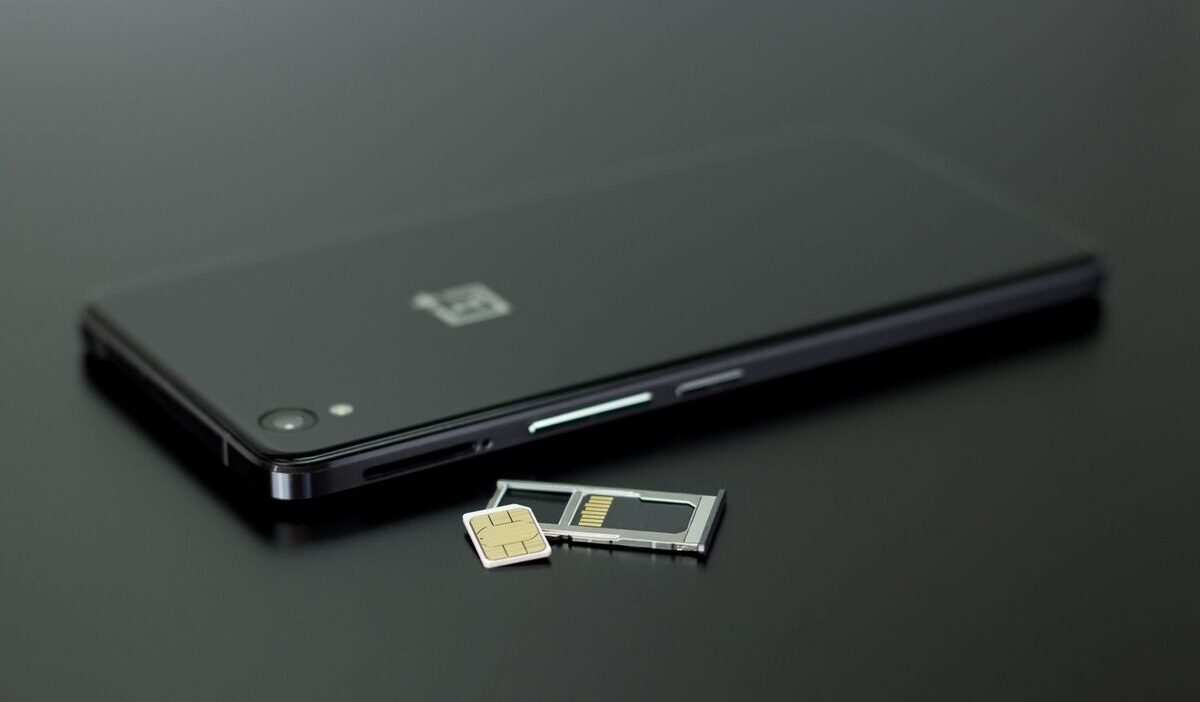
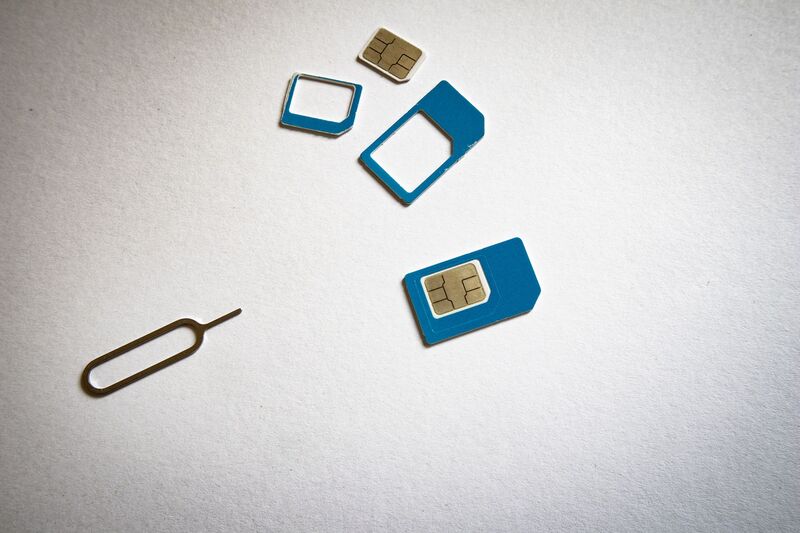
- Remove and reinsert the physical SIM. Power off the phone, eject the SIM tray, remove the card, inspect it, and reseat it firmly. Make sure the tray clicks back into place fully.
- Clean the SIM card contacts. Use a dry microfiber cloth to gently wipe the gold contacts on the SIM card. Do not use liquids or abrasive materials.
- Check whether the carrier account is active. Log in to the carrier account or call support to confirm the line is active and the account is in good standing.
- Try another SIM card if your phone has a physical SIM tray. If another active SIM works, your original SIM may need replacement.
Fixing “No SIM” on iPhone
In several cases, you may try to find out why does my phone say SOS and no SIM. If quick fixes do not resolve the error, these iPhone-specific steps address deeper causes.
- Go to Settings, Cellular, and check whether the cellular line appears. If it shows as off, toggle it back on.
- Check if the iPhone is carrier locked by going to Settings > General > About and looking for Carrier Lock. If the iPhone is unlocked, Apple says it shows “No SIM restrictions.”
- Update iOS. Go to Settings, General, Software Update, and install any available updates.
- Check for a carrier settings update. Go to Settings, General, About. If a carrier update is available, a prompt appears automatically. Carrier updates sometimes resolve eSIM and network configuration issues.
- Reset network settings by going to Settings, General, Transfer or Reset iPhone, Reset, Reset Network Settings. This clears saved Wi-Fi passwords and cellular settings but often resolves persistent No SIM errors. Apple’s support page on No SIM errors provides additional steps for cases that do not resolve after a network reset.
- For eSIM issues, contact the carrier directly. A missing or failed eSIM profile usually requires the carrier to re-provision the eSIM remotely.
How to Fix “No SIM Card” on Android
Android steps vary slightly by manufacturer but follow the same general path.
- Open Settings and look for Network & internet, Connections, Mobile network, SIMs, or SIM manager, then confirm the SIM or eSIM is enabled and selected as the active line.
- Reseat the SIM card after powering off the device completely.
- Update Android software. Go to Settings, System, Software Update, and install any pending updates.
- Reset network settings. On many Android phones, go to Settings > System > Reset options > Reset Wi-Fi, mobile & Bluetooth. On Samsung, the path may be Settings > General management > Reset > Reset mobile network settings or Reset network settings.
- On Samsung devices, go to Settings, Connections, SIM Manager, and confirm the SIM slot is enabled and the correct line is active.
- For eSIM on Android, check whether the eSIM profile is installed under SIM Manager. If it is missing, contact the carrier to re-download or re-provision it.
- If your iPhone has a physical SIM tray, remove and reinsert the SIM. If the alert remains, try another active SIM or ask your carrier to test the phone with a replacement SIM.
On iOS 18 or later, Apple also says the Apple Support app may run diagnostics for No Service or SOS issues.
When to Contact the Carrier or Phone Manufacturer
Reach out to the carrier if the account status is unclear, the line may not be provisioned, the eSIM is missing, the SIM needs replacement, or the phone shows SOS/No Service even after basic fixes.
Reach out to the phone manufacturer or an authorized repair provider if multiple active SIM cards fail in this phone but work in other phones, because that points to a SIM reader, tray, modem, or device hardware issue.
5. FAQs
Can I Still Use Wi-Fi Calling if My Phone Says No SIM?
Usually no. Wi-Fi calling is a carrier feature tied to an active phone line, so if the phone cannot recognize the SIM or eSIM, Wi-Fi calling usually will not work. If the line is still active but only cellular coverage is weak, Wi-Fi calling may work once the carrier line is recognized.
Does “No SIM” Mean My Phone Is Broken?
Not necessarily. Most No SIM errors are caused by a dislodged SIM card, a software glitch, a carrier account issue, or an eSIM configuration problem, none of which indicate hardware damage.
Can I Activate a Phone Without a SIM Card?
It depends on the phone and carrier. iPhones from iPhone 14 US models onward are eSIM-only and can be activated over Wi-Fi without a physical SIM. Many Android phones can be set up over Wi-Fi without a SIM, but cellular service still requires either a physical SIM or an eSIM from a carrier.
Why Does My New iPhone Have No Physical SIM Slot?
In the U.S., iPhone 14 and later models use eSIM instead of a physical SIM tray. In other countries, some iPhone models may still support a physical SIM, so always check the model sold in your region. Apple switched these models to eSIM-only in the US market. Activation happens through the carrier’s eSIM provisioning process, either during initial setup, through the carrier’s app, or by scanning a QR code provided by the carrier.
Conclusion
If you keep asking, why does my phone say No SIM, start with the simplest fixes before assuming the phone is broken. Restart the device, toggle Airplane Mode, reseat the SIM if your phone has one, and check that your carrier account or eSIM line is active.
If the same SIM works in another phone or your carrier confirms the eSIM is provisioned correctly, the issue may point to a deeper software or hardware problem that needs support.