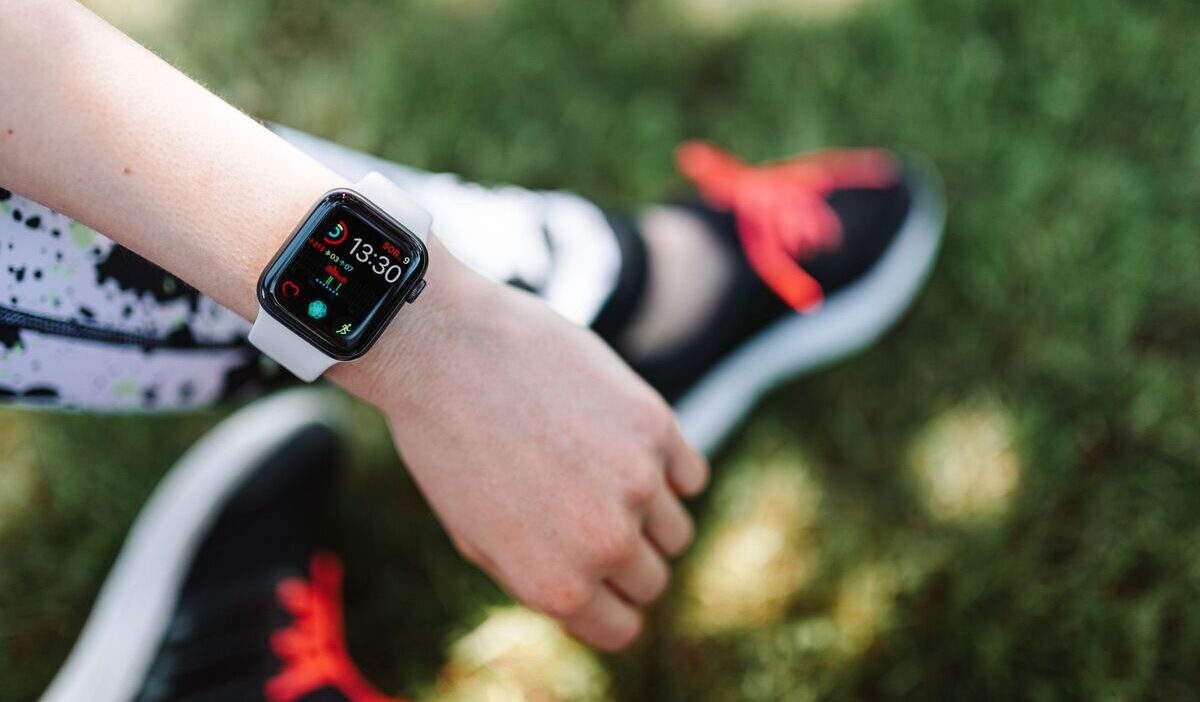
How to pair Apple Watch to new phone depends on whether you still have your old iPhone, whether the watch was backed up, and whether Activation Lock is still connected to your Apple Account.
In the easiest case, Quick Start can help transfer the watch during new iPhone setup. If that does not work, you may need to unpair the watch, restore from a backup, or erase it before pairing again.
This guide walks through each option so you can switch phones with fewer pairing errors.
1. Before You Start the Pairing
A few checks before finding out how to pair an Apple Watch to a new phone.
- Update your old iPhone, new iPhone, and Apple Watch when possible. Apple says your backup may not appear if your iPhone and Apple Watch are not up to date, so install available updates before pairing or restoring.
- Keep Bluetooth and Wi-Fi on. Both need to be active on the iPhone for pairing to work. Apple says Bluetooth should be turned on and the iPhone should be connected to Wi-Fi or a mobile network before setup.
- Charge both devices. Keep the iPhone and Apple Watch above 50 percent during pairing. A low battery interrupting the process mid-setup can leave both devices in an inconsistent state.
- Back up the old iPhone first. Backing up your iPhone also backs up your Apple Watch. For Health and Activity data, use iCloud with Health turned on, or use an encrypted computer backup.
- Know your Apple Account password and Apple Watch passcode. Apple lists both as requirements when pairing an Apple Watch with a new iPhone.
2. How to Pair Apple Watch to New Phone
These options cover the most common situations, from a smooth same-day phone upgrade to cases where the old iPhone is no longer available.
Method 1: Use Quick Start During iPhone Setup
Quick Start is the fastest method and handles most same-day iPhone upgrades automatically. Turn on the new iPhone and place it next to the old iPhone. Follow the Quick Start prompts to transfer data or restore from a backup.
During setup, the new iPhone may ask whether you want to use your existing Apple Watch. Keep the watch unlocked and on the wrist, then tap Continue when prompted.
Enter the watch passcode if asked. Keep both phones and the watch close together until the sync finishes. If no Apple Watch prompt appears during setup, finish the iPhone setup and use Method 2.
If the transfer starts but does not finish, open the Watch app on the new iPhone, go to My Watch > All Watches, and tap Finish Pairing if that option appears.
Method 2: Unpair From the Old iPhone and Restore From Backup
This is the cleanest manual method when Quick Start does not detect the watch and the old iPhone is still available. Unpairing from the old iPhone automatically creates a fresh Apple Watch backup and removes Activation Lock, which are both necessary before the watch can pair with a new phone.
On the old iPhone, open the Apple Watch app and go to My Watch, then All Watches. Tap the information icon next to the watch name and select Unpair Apple Watch.
If your watch has a cellular plan and you plan to pair it again, choose to keep the plan; if you are selling or giving away the watch, remove it and contact your carrier if needed.
Enter the Apple Account password when prompted to confirm Activation Lock removal. After unpairing, set up the new iPhone with the same Apple Account and restore the iPhone from the most recent backup if you want your Apple Watch backup to appear.
Open the Watch app on the new iPhone, place the watch nearby, and tap Start Pairing, then choose Restore from Backup.
Method 3: Erase and Pair Directly (If the Old iPhone Is No Longer Available)
If the old iPhone is gone, broken, or already reset, the Apple Watch must be erased directly from the watch itself before it can pair with a new phone.
On the watch, go to Settings, General, Reset, and tap Erase All Content and Settings. Confirm when prompted. If the watch has a cellular plan and you will pair it again, choose to keep the plan during erase.
Important: erasing the Apple Watch this way does not remove Activation Lock. Before pairing again, the watch will require the Apple Account and password that were used to set it up, per Apple’s guidance.
If the watch belonged to someone else and Activation Lock is still on, the previous owner must remove the Apple Watch from their Apple Account in Find My before you can pair and use it.
Method 4: Pair Manually If the Camera Won’t Scan
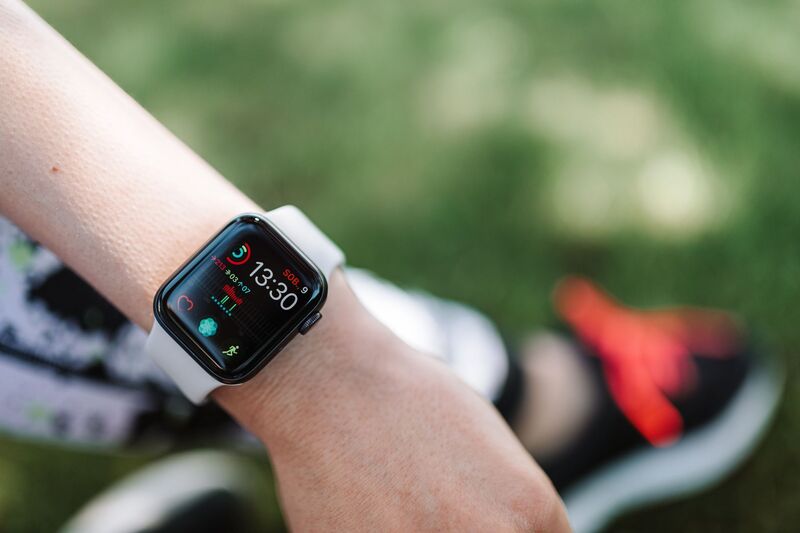
If the pairing animation does not appear on the watch or the iPhone camera cannot read it, tap Pair Apple Watch Manually in the Watch app instead of using the camera scan. Follow the on-screen code and instructions shown on the watch and iPhone to complete pairing.
If pairing stalls, Apple support recommends restarting or resetting the Apple Watch during pairing before trying again.
3. Why Won’t My Apple Watch Pair to My New Phone?
Five problems account for the vast majority of pairing failures. Each has a specific fix.
The Watch Is Still Paired to the Old iPhone
An Apple Watch can only be paired with one iPhone at a time. If the watch was not unpaired from the old phone before setup, the new iPhone will not be able to take over the connection.
Return to the old iPhone, open the Watch app, and unpair the watch from there. If the old iPhone is no longer accessible, erase the watch directly, then pair it with the new iPhone and enter the Apple Account credentials originally used on the watch when prompted.
Software Is Not Up to Date
If the iPhone or Apple Watch is not up to date, the Apple Watch backup may not appear during setup. Update the iPhone to the latest iOS version and check whether the Apple Watch also needs a watchOS update.
Both devices should be on their most current versions before attempting to pair or restore.
Bluetooth or Wi-Fi Is Not Turned On
Pairing requires both Bluetooth and Wi-Fi to be active on the iPhone. Check Bluetooth in Settings and make sure the iPhone is connected to Wi-Fi or a mobile network.
Turning Airplane Mode on and off resets both connections at once, which can also help if the watch and phone are not detecting each other despite both being nearby.
The Pairing Animation or Camera Is Not Working
If the Apple Watch displays the pairing animation but the iPhone camera cannot read it, switch to manual pairing by tapping the Pair Apple Watch Manually option in the Watch app.
If pairing appears stuck, press and hold the Digital Crown while the watch is in pairing mode, tap Reset when it appears, then try pairing again.
Activation Lock Is Blocking Setup
Activation Lock appears when a watch is erased without first being properly unpaired from the previous iPhone. The watch will ask for the Apple Account email and password that were originally used to set it up. Entering the correct credentials removes the lock and allows pairing to continue.
If you do not know those credentials because the watch belonged to someone else, the previous owner must remove the watch from their Apple Account; otherwise, you cannot complete setup.
>>>Read more: How to Record a Phone Call on iPhone: Full Step-by-Step 2026
4. FAQs
Do I Need My Old iPhone to Pair My Apple Watch to a New One?
No, but having it makes the process cleaner. Unpairing from the old iPhone removes Activation Lock automatically and creates a backup that can be restored on the new phone. Without the old iPhone, the watch must be erased directly. However, erasing from the watch does not remove Activation Lock, so you still need the Apple Account and password used to set up the watch.
Will I Lose My Watch Faces and Settings When I Switch Phones?
Not if a backup exists. Restoring from a recent iPhone backup or Apple Watch backup restores watch faces, app layout, and most settings. Health and Activity data can sync through iCloud when Health is turned on, and you use the same Apple Account; if you use a computer backup instead, it must be encrypted to preserve that data.
Can I Pair an Apple Watch to an Android Phone?
No. Apple Watch requires an iPhone and is not compatible with Android. The minimum iPhone model and iOS version required depends on the Apple Watch model being paired. As of Apple’s current setup requirements, Apple Watch Series 11, Apple Watch Ultra 3, and Apple Watch SE 3 require an iPhone 11 or later running iOS 26 or later.
What if My Apple Watch Is Stuck on the Apple Logo During Pairing?
If your Apple Watch is stuck on the Apple logo, force restart it by holding the side button and Digital Crown until the screen goes black and the Apple logo reappears. If it gets stuck while pairing, restart the watch, then press and hold the Digital Crown or firmly press the screen and tap Reset when the option appears.
Conclusion
Learning how to pair Apple Watch to new phone is much easier when the old iPhone is still available and the watch can be unpaired properly first. Quick Start may handle the transfer automatically, but the Watch app can also finish setup or restore a recent backup.
If the old phone is gone, erasing the watch and using the original Apple Account credentials can help you get past Activation Lock and complete pairing on the new iPhone.