Just got a new iPhone and can’t find the SIM tray? Or maybe you’ve switched carriers and your number isn’t working yet. An eSIM is a digital SIM card, though setting it up for the first time can feel unfamiliar.
Here’s how to activate eSIM on iPhone without guessing. The right method depends on your carrier, and most setups take only a few minutes.
1. What Do You Need Before You Activate an eSIM?
A few quick checks can help you avoid getting stuck during setup:
- Compatible iPhone: iPhone XS, XS Max, XR, or newer, except certain regional models.
- eSIM support: Your carrier must offer eSIM for your phone and plan.
- Internet: Use reliable Wi-Fi to download the eSIM profile.
- Updated iOS: Install the latest version available for your phone.
- Activation details: Keep your carrier’s QR code, link, or instructions ready.
When switching carriers, check Settings > General > About > Carrier Lock for No SIM Restrictions. Keeping your number may also require an account number and transfer PIN.
2. Which eSIM Rules Apply to iPhone 13, 14, and 15?
These phones use similar activation steps, but physical SIM support differs between models.
- How to Activate eSIM on iPhone 13
Open Settings > Cellular > Add eSIM and follow your carrier’s prompts. U.S. iPhone 13 models support a physical SIM alongside an eSIM, or two active eSIMs.
This lets you keep separate work and personal lines without carrying another phone.
- How to Activate eSIM on iPhone 14
If you’re wondering how to activate eSIM on iPhone 14, remember that U.S. models have no SIM tray.
Instead of inserting your old card, choose Add eSIM or follow the startup prompts. Your carrier can help transfer your existing number.
- How to Activate eSIM on iPhone 15
For how to activate eSIM on iPhone 15, use Settings > Cellular > Add eSIM as well. U.S. models rely entirely on eSIM, so follow the activation method your carrier supports.
Bought your iPhone abroad? SIM support varies by region. Many international models have SIM trays, while certain versions sold in mainland China, Hong Kong, or Macao have different eSIM capabilities. Check your exact model before buying a plan.
3. How Do You Activate eSIM on iPhone?
You don’t need to try all five methods. Your carrier’s instructions should point you to the right one. If you’ve received a QR code, use Method 3. If you’re upgrading from another iPhone, Method 2 may be easier.
Method 1: Use eSIM Carrier Activation
If you bought your phone through a carrier, the plan may already be assigned to it. In that case, follow the cellular setup prompts when turning it on.
Already finished setup? Tap the Carrier Cellular Plan Ready to Be Installed notification, then tap Continue.
Test a call afterward. If the new plan replaces a physical SIM, remove the old card after activation.
Method 2: Use eSIM Quick Transfer From Your Old iPhone
Quick Transfer may let you move your number without requesting a new QR code. Keep both iPhones nearby, unlocked, signed in to the same Apple Account, and with Bluetooth enabled. Both need iOS 18.4 or later.
- On the new iPhone, open Settings > Cellular > Add eSIM.
- Select your number or Transfer From Nearby iPhone.
- Approve the transfer on your old phone and follow the prompts.
Your old SIM stops working once the new line activates. If the transfer option is missing, ask your carrier about another method.
Method 3: Scan a QR Code From Your Carrier
A QR code lets your iPhone download the plan directly. Here’s how to use it:
- Connect to Wi-Fi and open Settings > Cellular > Add eSIM > Use QR Code.
- Scan the code your carrier sent.
- Tap Continue and Add Cellular Plan if prompted.
- Wait for activation, then test your connection.
What if the code is on the same iPhone? On iOS 17.4 or later, you can touch and hold a QR code shown in a supported email app or browser and tap Add eSIM.
Avoid deleting an installed eSIM because some codes work only once.
Method 4: Use a Carrier Link, App, or Manual Details
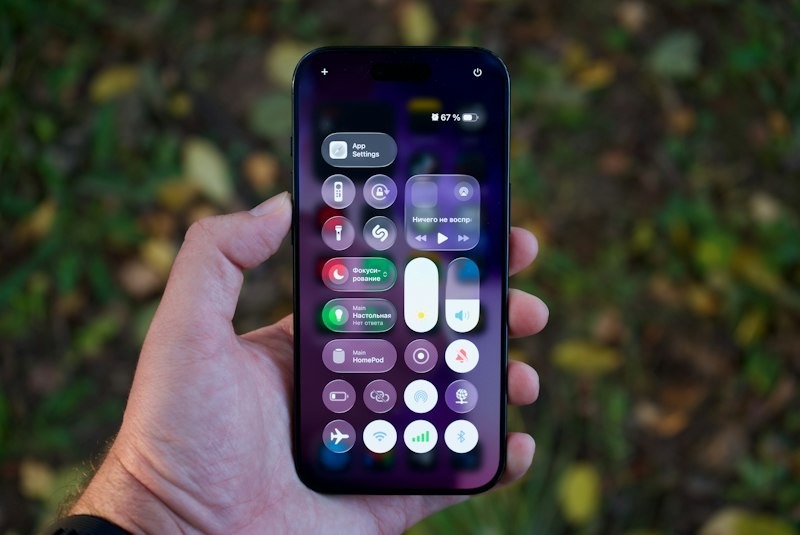
Not every carrier uses QR codes. Your provider may send an activation link or direct you to its app instead. Follow the prompts; carrier-link activation requires iOS 17.4 or later.
For manual setup, open Settings > Cellular > Add eSIM > Enter Details Manually. Enter only the information your carrier provides.
Method 5: Convert a Physical SIM to eSIM
Some carriers let you convert your existing SIM without changing your number.
Open Settings > Cellular, select your current line or Add eSIM, and look for Convert to eSIM.
Follow the prompts and confirm your new line works before removing the card. If the option isn’t available, contact your carrier.
4. How Do You Set Up a Travel eSIM Before Your Trip?
Landing abroad without mobile data can be stressful, especially when you need directions. A travel eSIM lets you prepare before leaving home.
Buy a plan for your destination and install it using the provider’s instructions. Check when its validity starts, as some plans begin counting immediately.
When you arrive, go to Settings > Cellular > Cellular Data and select your travel line.
Turn off Data Roaming on your home line to avoid home-plan data charges, but remember that calls or texts may still cost extra. On iOS 26, supported plans may show a Turn On Travel eSIM prompt.
5. What Should You Do If Your iPhone eSIM Won’t Activate?
Still seeing No Service? This doesn’t always mean something is wrong with your phone. Sometimes the download fails, or your carrier hasn’t finished activating the line.
| Problem | What to try |
| QR code rejected | Ask your carrier whether the code is still valid. |
| Plan won’t download | Reconnect to stable Wi-Fi. |
| “SIM Not Supported” | Check that your phone is unlocked and compatible. |
| New line appears, but no signal | Enable the line under Settings > Cellular, then restart. |
| Activation stays stuck | Check Settings > General > About for a carrier settings update. |
After making changes, turn off Wi-Fi and test mobile data or a call.
If you’re still stuck, contact your carrier with the error message and your IMEI or EID from Settings > General > About. Don’t delete the eSIM unless support tells you to.
>>>Read more: How to Get 5G on iPhone: Compatibility and Easy Fixes
6. Looking for an Affordable eSIM Plan for Your iPhone?
If your current iPhone still works, buying another phone just to switch carriers probably isn’t in your budget. But even with an eSIM, you still need to pay for wireless service.
The good news? If money is tight, you may be able to keep your iPhone and lower that monthly bill through AirTalk Wireless.
Get Connected Doesn’t Have to Be Expensive
For households watching every dollar, the federal Lifeline program can help make phone service more affordable.
It provides a monthly service discount if you or someone in your household participates in Medicaid, SNAP, SSI, Federal Public Housing Assistance, or if your household income is at or below 135% of the Federal Poverty Guidelines. Generally, only one Lifeline benefit is allowed per household.
Lifeline doesn’t provide eSIMs or devices. You receive the service discount through a participating Eligible Telecommunications Carrier (ETC), such as AirTalk Wireless.
AirTalk Wireless offers eligible customers $0 monthly wireless plans in supported areas. It also supports eSIM activation on compatible, unlocked iPhones, meaning you may be able to keep your current phone, avoid a physical SIM delivery, and save on monthly service.
How to Activate an AirTalk Wireless eSIM on Your iPhone
Start by checking your iPhone’s compatibility and available plans on AirTalk’s website. If you’re new to AirTalk, complete the Lifeline application and choose the eSIM option if available for your device.
Once your service is approved and ready, follow AirTalk’s instructions to install the eSIM using the provided QR code. Existing customers can request an eSIM through SIM Replacement in their account.
Avoid deleting an installed eSIM without contacting support, as AirTalk profiles cannot be downloaded again after removal.
IMPORTANT: The government does not subsidize devices. Lifeline programs cover basic service costs only. Free or discounted devices, upgrade plans, or top-ups are exclusive benefits provided by AirTalk Wireless as part of the promotional offers. Terms and conditions apply. Limited-time promotion—offers vary by state, stock availability, and eligibility.
7. FAQs
How Long Does eSIM Activation Usually Take?
Most installations finish within minutes on stable Wi-Fi, but transferring your number between carriers may take longer. If activation stays pending, contact your provider.
Is It Possible to Reuse an eSIM QR Code After Deleting the eSIM?
It depends on your carrier. Some codes can be reused; others are single-use. Ask your provider before deleting a working eSIM.
How Many eSIMs Can One iPhone Store?
Your device may have regional restrictions, outdated software, or a compatibility issue. Update iOS and confirm eSIM support with your carrier.
Conclusion
Knowing how to activate eSIM on iPhone saves time when you switch phones, carriers, or countries.
Start with Carrier Activation or Quick Transfer when you can. Otherwise, use a QR code, link, app, or manual details. If activation stalls, check Wi-Fi, iOS, and carrier settings, then call your carrier.