
Many laptops have no visible right button, so the menu you need seems out of reach. Luckily, how to right click on a laptop is simple once you know the gesture. Most touchpads use a two-finger tap, while others use a corner or a key combo. This guide covers Windows, Mac, and Chromebook, plus settings and fixes.
How to Right Click on a Laptop Touchpad?
You don’t need an external mouse to access shortcut menus. Try these simple touchpad techniques instead.
| System | Main gesture | Backup method |
|---|---|---|
| Windows | Tap with two fingers | Lower-right corner or Shift + F10 |
| macOS | Click or tap with two fingers | Control + click |
| ChromeOS | Press or tap with two fingers | Alt + one-finger click |
Right Click on a Windows Laptop
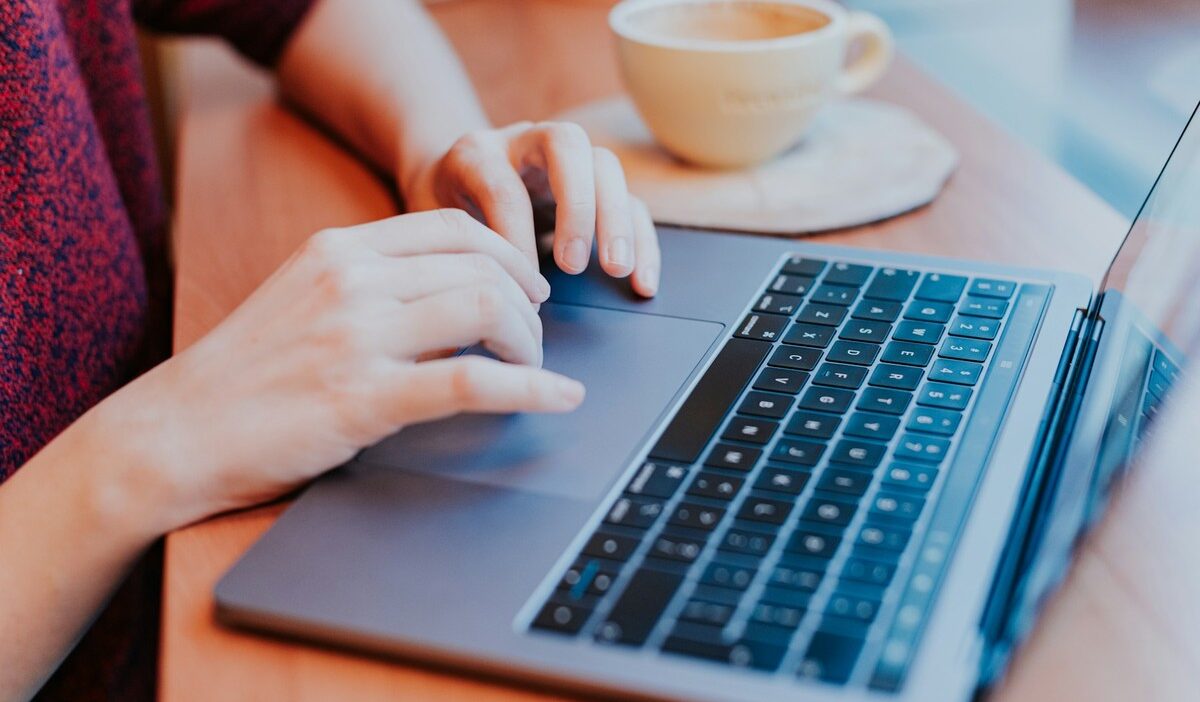
Here is how to right click on a laptop running Windows. Most touchpads accept a two-finger tap, so rest two fingers on the pad and tap once. The menu then opens at the pointer.
Some models also treat the lower-right corner as a right button. Meanwhile, laptops with two physical buttons simply use the right one. Try the tap first, since it works anywhere on the pad.
Right Click on a MacBook
Apple calls a right-click a secondary click. To learn how to right click on a Mac laptop, click or tap the trackpad with two fingers. Alternatively, hold Control and click with one finger.
If neither works, open System Settings > Trackpad > Point & Click and check the Secondary click option.
Right Click on a Chromebook
Press or tap the touchpad with two fingers. Alternatively, press Alt and click with one finger. This helps when tapping is turned off.
However, pressing the lower half of the touchpad with one finger is only a normal click. Overall, the two-finger tap is the one gesture worth learning on all three systems.
How Can You Right Click Using Only the Keyboard?
Sometimes the touchpad fails, or you simply prefer shortcuts. Fortunately, how to right click on a laptop without a mouse comes down to a few keys. Select the item with the arrow keys or Tab first, because the shortcut acts on the highlighted item.
- Shift + F10: opens the context menu on Windows. It works on laptops that have no Menu key.
- Menu key: it sits near the right Ctrl key on full-size keyboards. Most laptops leave it out.
- Control + click or Alt + click: MacBooks use Control and Chromebooks use Alt. However, you still click with one finger.
Windows users should memorize Shift + F10, since it works on almost any keyboard.
>>> Read more: How to Screenshot on Lenovo Laptop: All the Easiest Methods
How Can You Enable or Change Right-Click Settings on a Laptop?
You may know how to right click on a laptop, yet the gesture does nothing. In that case, it is usually switched off. Fortunately, each system keeps the setting in one place.
Windows Touchpad Settings
On Windows 11, follow these steps:
- Open Settings > Bluetooth & devices > Touchpad.
- Turn the Touchpad toggle on.
- Expand Taps.
- Tick Tap with two fingers to right-click.
The same section may list Press the lower right corner of the touchpad to right-click. Dell and HP laptops use the same path.
For how to right click on a Dell laptop, Dell confirms that a two-finger tap or the lower-right corner both work. Some older Dell models use Dell’s own touchpad software instead.
Likewise, how to right click on a HP laptop starts with the same Taps section. HP also lists the lower-right corner as an option.

MacBook and Chromebook Settings
On a MacBook, open System Settings > Trackpad and find Secondary click. Then pick a two-finger option or a bottom corner.
On a Chromebook, select the time at the bottom right and choose Settings. Next, go to Device > Touchpad and turn on Tap to click. Otherwise, the tap may do nothing.
Choose the two-finger option wherever you can. Corner clicks often trigger menus by accident when your palm touches the pad.
Why Is Right Click Not Working on Your Laptop?
Even when you know how to right click on a laptop, the gesture can fail. Most failures come from a switched-off setting, not broken hardware. Use this table to match the symptom to a fix.
| Problem | Likely cause | Quick fix |
|---|---|---|
| Nothing happens on the pad | Touchpad is turned off | Switch the Touchpad toggle on |
| Two-finger tap fails | Tap option is unchecked | Tick it under Taps |
| Pad stops after a double tap | Some HP touchpads toggle on a double tap in the upper-left corner | Double-tap that corner again |
| Gesture acts strangely | Driver is corrupted or outdated | Uninstall the touchpad in Device Manager, then restart |
Restart the laptop first, because a restart clears many small glitches. Then plug in an external mouse. If the mouse right-clicks fine, the touchpad or its driver is the cause.
>>> You might be interested in: How to Cast From Laptop to TV: Chrome, Win + K, or AirPlay?
FAQs
What Does Right Click Do?
It opens a context menu with actions for the item you clicked. Common choices include copy, paste, rename, delete, and properties. The list changes by app and item.
Can You Right Click on a Touchscreen Laptop?
Yes. To right-click on a touchscreen laptop, press and hold your finger on an item for a few seconds until the context menu appears. This gesture works similarly to a traditional right-click, allowing you to access additional options.
Is There a Keyboard Shortcut for Copy and Paste Instead of Right-Click?
Yes. On Windows and Chromebooks, press Ctrl + C to copy, Ctrl + X to cut, and Ctrl + V to paste. On a Mac, use Command instead of Ctrl.
Does an External Mouse Right-Click the Same Way?
Yes. An external mouse performs the same right-click function as a laptop touchpad. Simply press the right mouse button to open the context menu. This works with both wired and wireless mice without requiring additional settings in most cases.
Conclusion
Now you know how to right click on a laptop on Windows, Mac, and Chromebook. Start with the two-finger tap. If it fails, check your touchpad settings, then try Shift + F10 or Control + click. Finally, test an external mouse to rule out hardware problems.