
Buy an iPhone 14 in the US and you will not find a SIM tray. So, does iPhone 14 have eSIM? Yes, and it relies on it. This guide explains how an iPhone 14 eSIM works and how to activate one. It also covers how many lines you can run and what to do when setup fails.
Does iPhone 14 Support eSIM?
Every iPhone 14 model supports eSIM, a digital SIM built into the phone. However, the hardware depends on where you bought it. Now, let’s look at both cases.
- iPhone 14 Models Sold in the US
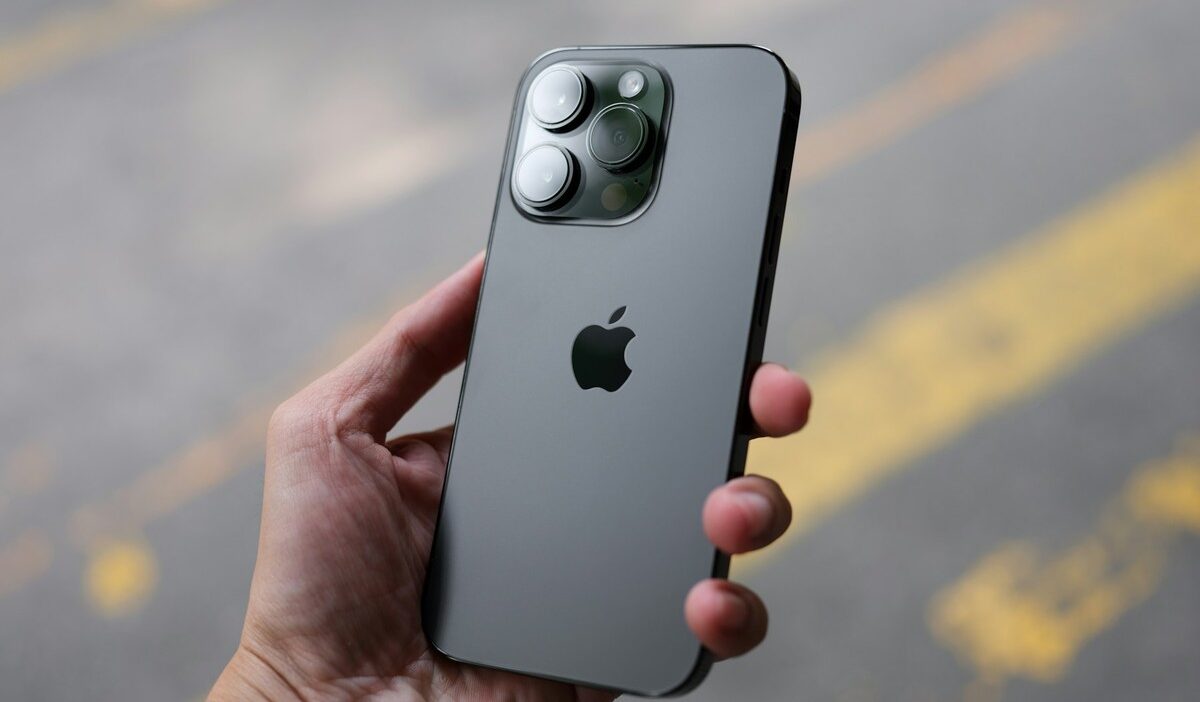
The iPhone 14, 14 Plus, 14 Pro, and 14 Pro Max sold in the US have no SIM tray. Apple says they use eSIM technology and do not work with physical SIM cards. As a result, your carrier must support eSIM before you buy.
- iPhone 14 Models Sold Outside the US
Most other regions get a tray for one nano-SIM plus an eSIM. That lets you keep your old SIM card and add a digital line. Meanwhile, models for mainland China, Hong Kong, and Macao use two nano-SIM cards instead of an eSIM.
What Do You Need Before Setting Up an iPhone 14 eSIM?
Most failed activations come from a missing requirement. So check this list before you add an iPhone 14 eSIM.
- Carrier support: your carrier or a worldwide provider must offer eSIM.
- Internet: use Wi-Fi or a hotspot. Some eSIM-only models can activate without Wi-Fi in certain regions.
- Current iOS: update first. Some methods below need iOS 17.4, and Quick Transfer needs iOS 18.4.
- An unlocked phone: when switching carriers, check Settings > General > About. You want “No SIM Restrictions” beside Carrier Lock.
- Activation details: a QR code, link, carrier app, or your account number and PIN.
How Do You Set Up an iPhone 14 eSIM?
You can activate your eSIM directly through your iPhone’s settings using one of the following methods.
Set Up the eSIM With a QR Code
These steps also show how to activate eSIM on iPhone 14 with any other carrier’s QR code.
- Connect your iPhone to Wi-Fi.
- Open the Camera app and scan the code. Then tap Cellular Plan Detected.
- If the code arrives by email on iOS 17.4 or later, touch and hold it. Then tap Add eSIM.
- Tap Continue, then Add Cellular Plan.
- Enter the confirmation code if asked, then make a test call.
During first-time setup, tap Use QR Code on the Set Up Cellular screen instead.
Activate or Transfer eSIM Through Your Carrier
No QR code? Ask your carrier. Apple lists three other routes.
- Carrier Activation: your carrier sends the plan. Tap Carrier Cellular Plan Ready to Be Installed, then Continue.
- Link or app: on iOS 17.4 or later, tap the link and choose Allow. Otherwise, use your carrier’s app.
- Manual details: go to Settings > Cellular > Add Cellular Plan, then tap Enter Details Manually.
Moving from an Android phone? Contact your carrier first, because it must move the number.
>>> Read more: SIM Free iPhone: Best Models, Deals, And AirTalk Wireless Options
How Many eSIMs Can Be Used on iPhone 14?
Many users ask how many eSIM can be used in iPhone 14. The answer has two parts, because storing a plan differs from using it.
| Limit | iPhone 14 |
|---|---|
| Stored eSIMs | Eight or more |
| Active at once | Two |
| Cellular data | One line at a time |
Both plans must be ready, and the phone must be unlocked unless both plans share one carrier.
Need to free a slot? Here is how to remove eSIM from iPhone 14. Open Settings > Cellular, tap the plan, and choose Delete Plan. With a single plan, tap Delete eSIM. However, this does not cancel service, so call your carrier to do that.
What Should You Do If Your iPhone 14 eSIM Won’t Activate?
Activation errors usually come from the network, not the phone. Try these fixes in order. After each one, swipe down from the top right and check for your carrier in the status bar.
| Fix | How |
|---|---|
| Reset the signal | Turn Airplane Mode on, then off |
| Refresh the line | In Settings > Cellular, turn the line off and on |
| Restart | Restart the iPhone |
| Update carrier settings | In Settings > General > About, tap the version next to Carrier |
| Update iOS | Install the latest iOS version |
Still stuck? Contact your carrier. Have the error message, phone number, account PIN, and IMEI or EID ready. Both numbers are in Settings > General > About. Do not erase the eSIM as a fix unless your carrier asks, since you would need a new code.
Can You Keep Your iPhone 14 and Switch to a Lower-Cost Plan?
Absolutely. One of the biggest advantages of the iPhone 14 eSIM is the flexibility to switch carriers without replacing your phone or waiting for a physical SIM card. As long as your device is unlocked and compatible with your new carrier, you can switch to a more affordable plan.
If monthly phone bills are putting pressure on your budget, the Lifeline may be worth exploring. This federal government assistance program reduces the cost of phone or internet service for eligible households.
You may qualify through SNAP, Medicaid, SSI, Federal Public Housing Assistance, or a household income at or below 135% of the Federal Poverty Guidelines. The benefit is non-transferable and limited to one per household.
As a participating Lifeline provider, AirTalk Wireless offers eligible customers free monthly phone service with eSIM support for compatible devices.
You can keep your iPhone 14, retain your existing number if eligible for transfer, and enjoy monthly talk, text, and data without purchasing another phone.
Here’s how to get started:
- Visit AirTalk Wireless and enter your ZIP code to check available offers.
- Select Bring Your Own Device (BYOD) and confirm your iPhone’s compatibility.
- Complete your application and provide any required eligibility documents.
- Once approved, follow the eSIM activation instructions provided with your order.
- Connect to Wi-Fi, scan your eSIM QR code, and complete the setup.
With a compatible iPhone 14 and an eligible Lifeline plan, you could eliminate your monthly phone bill without giving up the device you already love.
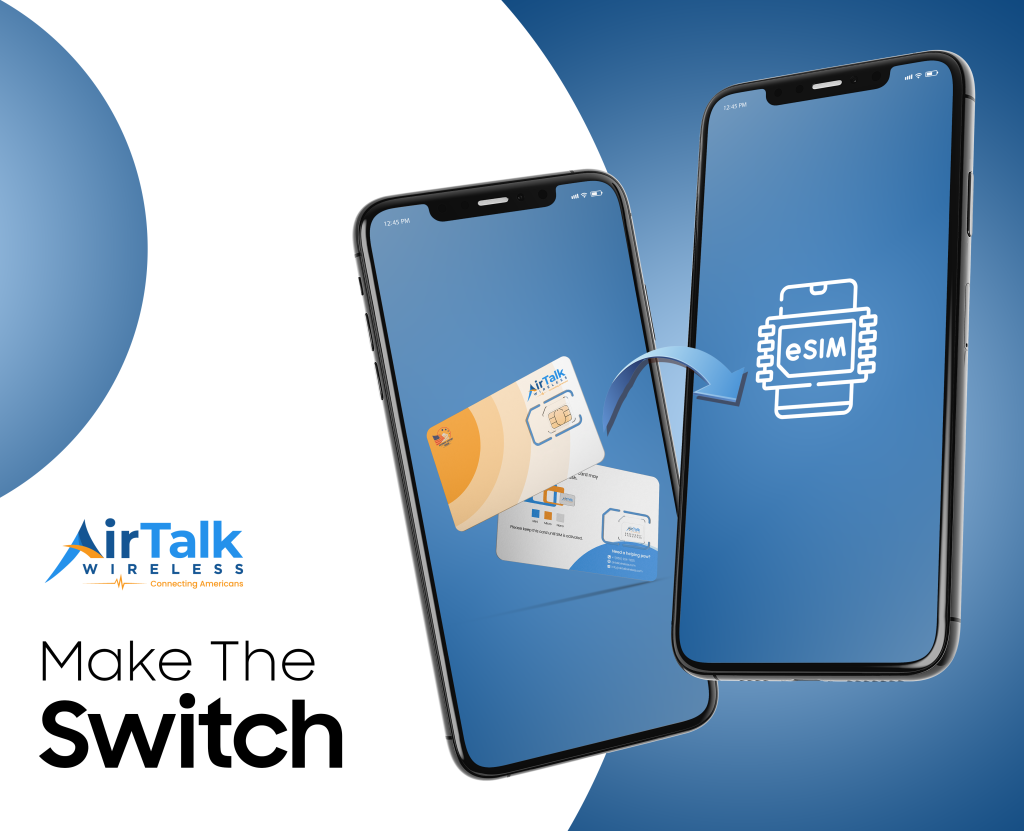
Availability varies by device and state, so confirm your iPhone 14 qualifies before you apply.
FAQs
Can You Transfer an iPhone 14 eSIM to a New Phone?
Yes, if your carrier supports eSIM Quick Transfer. Both iPhones need iOS 18.4 or later, the same Apple Account, and Bluetooth on. On the new phone, open Settings > Cellular > Add eSIM and tap Transfer From Nearby iPhone. The old SIM stops once the new line activates.
What Happens to Your eSIM If You Lose or Reset Your iPhone 14?
If you lose the phone, contact your carrier to suspend the account, then mark it as lost at iCloud.com/find. When you reset the phone, Apple lets you erase the eSIM or keep it. Keep your iPhone 14 eSIM if you plan to reuse the line.
Is an eSIM Safer Than a Physical SIM If Your Phone Is Stolen?
In one way, yes. Apple says an iPhone 14 eSIM cannot be removed from a lost or stolen phone, so a thief cannot swap it into another phone. Still, act fast. Mark the phone as lost and ask your carrier to suspend the line.
Does an iPhone 14 eSIM Work for International Travel?
Yes. You can roam with your carrier, buy a local eSIM, or use a prepaid data eSIM from a worldwide provider. Because two eSIMs can be active, you can keep your home number and add travel data. The phone must be unlocked.
Conclusion
An iPhone 14 eSIM is simple once you know your model, your carrier, and your QR code. US models need eSIM, while other regions can keep a SIM card. Scan the code, make a test call, and keep the plan unless your carrier says otherwise. If cost matters, ask about Lifeline with AirTalk Wireless.