How to make your phone not turn off usually means keeping the screen awake longer before it locks. On iPhone, that comes down to Auto-Lock, while Android phones use Screen Timeout and may also offer features that keep the display on while you are looking at it or charging.
That said, a screen going dark is different from the entire phone shutting down unexpectedly. This guide shows you how to extend screen-on time first, then explains what to check if the device itself keeps powering off by itself.
1. How to Make Your Phone Screen Not Turn Off on iPhone
If you are searching how to make your phone not turn off iPhone, the setting you need for screen timeout is Auto-Lock.
- Open Settings
- Tap Display & Brightness
- Tap Auto-Lock
- Choose a longer time (up to 5 minutes) or select Never
If Auto-Lock is limited to a short duration, check whether Low Power Mode is active. Apple notes that Auto-Lock defaults to 30 seconds while Low Power Mode is on.
Go to Settings > Battery > Power Mode, turn off Low Power Mode, then return to Display & Brightness > Auto-Lock and choose your preferred duration.
2. Extend Screen Timeout on Android
How to make your phone not turn off for Android? Android phones control this through Screen Timeout, and some devices offer additional features to keep the screen active.
Change Screen Timeout:
- Open Settings
- Tap Display (or Display & Brightness)
- Tap Screen Timeout (or Sleep)
- Choose a longer duration
Keep-screen-on features:
Some phones can keep the display awake while you are looking at it.
On supported Pixel phones, look for Screen Attention.
On supported Samsung Galaxy devices, go to Settings > Advanced features > Motions and gestures > Keep screen on while viewing.
Availability and menu names vary by model and software version.
Stay Awake while charging:
Many Android devices include a Stay awake setting inside Developer Options.
The exact path varies, but you generally enable Developer Options through Settings > About phone and then find Stay awake under Developer Options.
When enabled, the screen remains on while the phone is connected to power.
Note: Stay Awake keeps your screen on continuously as long as the phone is plugged in and charging. Once the phone is unplugged, the normal screen-timeout setting applies again, even though Stay Awake remains enabled in Developer Options.
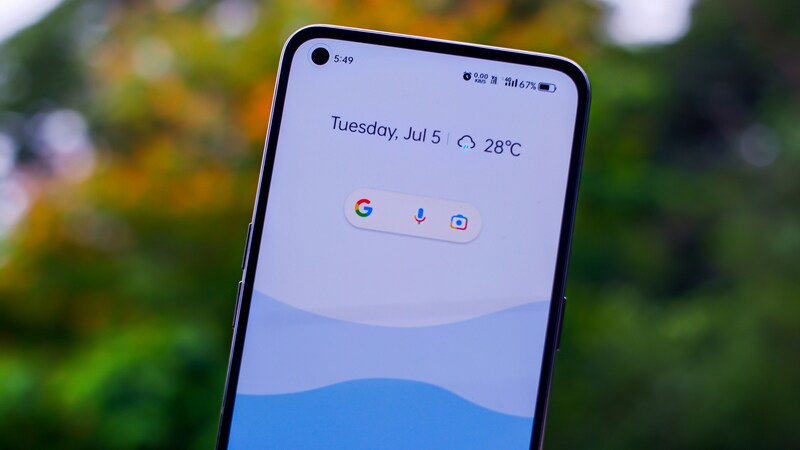
3. Keep the Screen Awake While Charging
If your main goal is simply keeping the screen visible while your phone charges, whether at a desk, in the kitchen, or on a nightstand, a few extra details are worth knowing.
- Android Developer Options: As covered above, Stay Awake is the built-in way to do this. It’s supported on most Android phones, though the exact menu wording can vary slightly by manufacturer
- iPhone workaround: iPhone doesn’t have a direct equivalent to Stay Awake. Setting Auto-Lock to Never achieves a similar result, but it applies at all times, not just while charging, so you’ll want to switch it back afterward
- App-specific keep-awake behavior: Some apps (navigation, video playback, certain recipe or workout apps) automatically prevent the screen from locking while they’re open, regardless of your Auto-Lock or Screen Timeout setting
- Heat and battery cautions: Keeping the screen on while charging generates more heat than charging with the screen off. Keeping the screen on while charging can increase power use and heat, so avoid covering the phone and use this setup only when you actually need the display to stay awake.
>>> Read more: Why Does My Phone Say SOS? Causes and How to Fix It Easily
4. If the Entire Phone Turns Off by Itself
Keeping the screen on longer solves a display timeout issue. It’s a different problem if your entire phone is powering off unexpectedly, which points to something deeper.
- Battery problems: A degraded battery can cause random shutdowns, even at a decent charge level
- Overheating: A phone that gets too hot may shut down automatically to protect its internal components
- Software crashes: A buggy app or outdated OS version can trigger unexpected restarts
- Charger or power-button issues: A faulty charging cable or a stuck power button can sometimes mimic a shutdown problem
- What to do: Update your software, check available battery diagnostics or battery-health information for your device, and free up storage if it is nearly full. If the phone continues shutting down unexpectedly after basic troubleshooting, contact the manufacturer or a qualified repair provider for further diagnosis.
>>> Read more: How to Stop Phone from Turning Off: All You Need to Know
5. Downsides of Keeping the Screen On
Keeping your screen on for extended periods has a few trade-offs worth knowing before you make the change permanent.
- Battery drain: A screen that stays on constantly uses noticeably more battery than one that times out normally
- Screen burn-in: On OLED displays, leaving the same static image on screen for very long periods can occasionally contribute to burn-in over time
- Best practice: Use Never or Stay Awake only when needed, then return to a shorter timeout that suits your normal use.
6. Frequently Asked Questions
Q1. How do I make my iPhone not shut off?
Go to Settings > Display & Brightness > Auto-Lock and choose a longer duration or Never. If Low Power Mode is active, Auto-Lock may be limited to 30 seconds, so turn Low Power Mode off first if needed.
Q2. How to make your phone not turn off automatically
On iPhone, adjust the Auto-Lock setting. On Android, adjust Screen Timeout. Both settings control how long the screen stays on before locking automatically.
Q3. How do I make my phone screen stay on while charging?
On Android devices that provide it, enable Stay awake in Developer Options to keep the screen on while connected to power. This keeps the screen on as long as the phone is plugged in. iPhone does not have a direct equivalent, but setting Auto-Lock to Never achieves a similar result.
Q4. Is it bad to keep my phone screen on all the time?
It increases battery drain and can occasionally contribute to screen burn-in on OLED displays if left on a static image for very long periods. It is fine for short-term use but not recommended as a permanent setting.
Conclusion
Keeping the display awake is usually a simple settings change, but the right option depends on your phone. iPhone users can adjust Auto-Lock, while Android users can change Screen Timeout or use supported keep-awake features when needed.
If you are trying to figure out how to make your phone not turn off by itself because the entire device is shutting down, however, screen settings are not the real fix. In that case, focus on battery condition, overheating, software problems, or hardware issues so you address the actual cause instead of only changing how long the screen stays on.