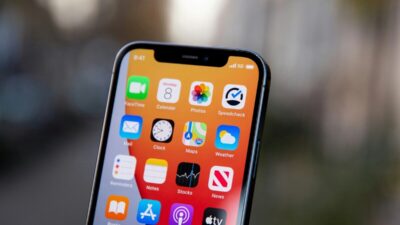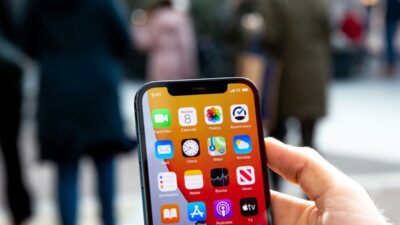
Your iPhone may show SOS or SOS only at the top of the screen when it cannot connect to your carrier’s cellular network. Regular carrier calls, SMS or MMS messages, and mobile data will not work through that line, although apps such as iMessage or WhatsApp may continue working over Wi-Fi.
If you are asking why does my phone say SOS, the status does not automatically mean the phone is broken. It usually points to a coverage, account, SIM, eSIM, or network issue, but hardware problems are also possible if the carrier confirms that its service is working normally.
This guide explains what the status means, what may have caused it, and which steps to try before contacting your carrier or arranging device service.
1. Why Does My Phone Say SOS?
On an iPhone, SOS or SOS only means the device is not connected to its normal cellular network but may still be able to make emergency calls through another available carrier network. Apple currently documents this status in Australia, Canada, and the United States.
Android phones may show a similar message, such as Emergency calls only or No service, but the exact wording varies by manufacturer and software version.
SOS does not confirm that the SIM card or eSIM is present and working correctly. The status can appear because the cellular line is turned off, the SIM is damaged or improperly seated, the eSIM is unavailable, the account is inactive, the carrier has an outage, or the phone is outside its normal coverage area.
This is different from a No SIM or Invalid SIM alert, which specifically indicates that the device cannot properly detect or use the SIM.
>>> Read more: Why Does My Phone Say No SIM? Causes and How to Fix It
2. Common Causes of SOS Mode
SOS mode typically appears when you are in a dead zone, a basement, or a rural area with weak coverage. It can also happen if your cellular plan is inactive, your SIM card is loose or damaged, there is a carrier outage in your area, or your phone’s carrier settings are outdated.
Here is a quick breakdown of the most common causes:
- Weak or no signal: You may be in an area with limited coverage, such as a basement, elevator, tunnel, or rural location. Your phone switches to SOS mode when it cannot find your carrier’s signal
- Inactive cellular plan: If your account has a billing issue or your plan has lapsed, your carrier may cut access to the network
- Loose or damaged SIM card: A SIM card that has shifted in its tray or is physically worn can lose contact with the phone
- Carrier outage: Temporary outages in your area can disconnect your phone from the network
- Outdated carrier settings: Phones occasionally need a small settings update from the carrier to maintain proper connectivity
3. SOS Mode vs Emergency SOS: Not the Same Thing
When researching why does my phone say SOS, you should also take notice that the SOS or SOS-only label in the status bar is a cellular-network indicator. It means the iPhone cannot connect to its normal carrier network but may still be able to reach emergency services.
Emergency SOS is a separate safety feature used to contact emergency services deliberately.
On iPhone, you can press and hold the side button with either volume button until the emergency controls appear. You may also enable Call with 5 Presses under Settings > Emergency SOS.
On supported Android phones running Android 12 or later, Emergency SOS can be configured under Settings > Safety & emergency > Emergency SOS. Pressing the power button five times or more begins the configured process, which may include a confirmation step or countdown.
Seeing SOS in the status bar does not mean that Emergency SOS has been activated.
4. How to Fix SOS on iPhone and Android
Start with the least disruptive checks before resetting network settings.
Toggle Airplane Mode
Turn Airplane Mode on for at least 15 seconds, then turn it off. This forces the phone to search for an available cellular network again.
Move to Another Location
Go outside or move away from basements, elevators, tunnels, and other places that may block cellular signals. If service returns, weak local coverage was likely the cause.
Restart the Phone
Restart the device to clear temporary software or network-registration problems.
Check the Cellular Line
On iPhone, go to Settings > Cellular, select the affected line, and confirm that Turn On This Line is enabled.
On Android, open the SIM or mobile-network settings and confirm that the physical SIM or eSIM line is enabled. The exact path varies by manufacturer.
Check the Physical SIM or eSIM
If you use a physical SIM, power off the phone and carefully reseat the card. If the SIM is damaged, does not fit properly, or continues causing errors, ask the carrier for a replacement.
For an eSIM, confirm that the profile still appears in the phone’s cellular settings. Contact the carrier if the line is missing or cannot be enabled.
Check the Account, Coverage, and Outages
Ask the carrier to confirm that:
- The account is active and in good standing
- The phone is not blocked from cellular service
- The correct plan is attached to the device
- There is no outage in the area
- The phone is compatible with its network
- Update the Phone and Carrier Settings
Install available system updates.
On iPhone, connect to Wi-Fi and go to Settings > General > About. Install a carrier-settings update if a prompt appears.
Reset Network Settings as a Later Step
If the problem continues, reset the phone’s network settings. On iPhone, go to Settings > General > Transfer or Reset iPhone > Reset > Reset Network Settings.
Android paths vary by manufacturer. Look for Reset mobile network settings or Reset Wi-Fi, mobile, and Bluetooth under the system reset options.
A network reset does not erase photos or apps, but it may remove saved Wi-Fi networks, passwords, Bluetooth connections, VPN settings, and other network preferences.
If the carrier confirms that the account and network are working but the phone remains in SOS or emergency-calls-only status, the device may need professional service.
>>> Read more: Why Is My Phone So Slow? Easy Fixes
5. Frequently Asked Questions
Q1. Why does my phone say SOS at the top?
On iPhone, the SOS status means the device cannot connect to its normal carrier network. Emergency calls may still work through another available network, but regular cellular calls, texts, and data will not.
Q2. Why does my phone say SOS only?
SOS only has the same meaning as SOS on iPhone. Check your coverage, cellular line, account status, SIM or eSIM, and carrier outages.
Q3. How do I get my phone out of SOS mode?
Start by toggling Airplane Mode for at least 15 seconds, moving to an area with better coverage, and restarting the phone. If SOS remains, check the cellular line and contact the carrier before resetting network settings.
Q4. What triggers iPhone SOS?
Common causes include weak coverage, a carrier outage, an inactive account, a disabled cellular line, or a SIM or eSIM problem. A device issue is also possible if the carrier confirms that its network and your account are working.
Final Words
When asking why does my phone say SOS, remember that the status points to a lost cellular connection rather than one specific problem. It may be caused by poor coverage, an outage, an inactive line, or an issue with the SIM, eSIM, account, or device.
Start with simple checks such as Airplane Mode, restarting the phone, and confirming that the cellular line is active. If the signal does not return, contact the carrier before making major changes so you can determine whether the problem comes from the network, your account, or the phone itse