How to transfer data from Android to iPhone? For most Android phones, you can use Apple’s free Move to iOS app during the initial setup. Supported devices running a compatible version of Android 17 may also transfer directly without installing the app.
If you have already set up your iPhone, you can still move certain content manually through cloud services or erase the iPhone and restart the full transfer process.
This guide covers each method step by step. It also explains what transfers and what does not, so you know what to expect.
1. Before You Transfer the Data
A little preparation makes the transfer go smoothly. Before you start, check the following:
- Charge both phones to at least 50%, or keep them plugged in during the transfer
- Turn on Wi-Fi on your Android phone. The devices do not need to be connected to the same Wi-Fi network because the iPhone creates a temporary network for the transfer. You can also connect supported devices directly with a compatible cable.
- Check iPhone storage. Make sure your new iPhone has enough space for everything you plan to move. Go to Settings > General > iPhone Storage to see how much is available
- Update Chrome on your Android if you want your Chrome bookmarks to transfer
- Turn off apps or settings that may interrupt Wi-Fi on your Android, such as Smart Network Switch or any VPN
- Do not finish iPhone setup if you plan to use Move to iOS. The app only works during the initial setup flow.
If you have already completed setup, see the “After Setup” section below
2. How to Transfer Data Using Move to iOS
The Move to iOS app is Apple’s free tool for transferring content from most Android phones to a new or factory-reset iPhone. It can move contacts, messages, photos, videos, calendars, email accounts, call history, files, folders, WhatsApp content, and other supported information.
If you have a supported device running a compatible version of Android 17, the Transfer Your Apps & Data screen may also show Transfer without App. This option lets you connect the phones by scanning a QR code instead of installing Move to iOS.
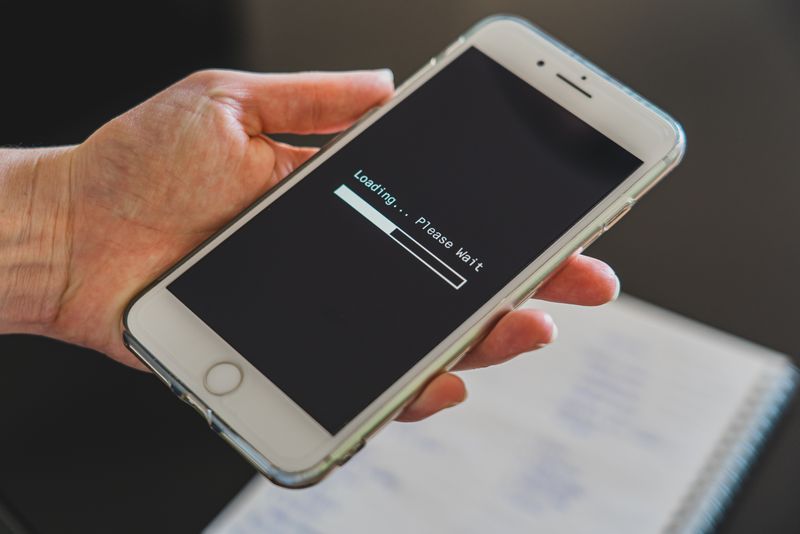
For either method, keep the phones near each other and connected to power until the loading bar on the iPhone finishes.
Here is the full process:
- Turn on your new iPhone and follow the setup screens until you reach Apps & Data
- Tap Move Data from Android
- On your Android phone, download the Move to iOS app from the Google Play Store
- Open the app and agree to the terms
- Wait for a 6-digit or 10-digit code to appear on your iPhone
- Enter the code on your Android phone to connect the two devices
- Select the content you want to transfer (contacts, messages, photos, Google account, calendars)
- Tap Continue and wait for the transfer to finish
- Keep both phones plugged in and near each other until the loading bar on your iPhone completes
For a wired transfer, connect the devices with a compatible USB-C cable when supported. You may need to change the USB connection settings on the Android phone before the transfer can begin. A wired connection can be faster, but availability depends on the ports and devices involved.
Note: Do not use either phone until the loading bar on the iPhone is complete. Transfer time varies according to the amount of content and connection method, so avoid relying on a fixed estimate. Some free apps may also transfer when they are available on both Google Play and the App Store and support the transfer feature.
>>> Read more: How to Pair Apple Watch to New Phone: Step-by-Step Guide
3. How to Transfer Data From Android to iPhone After Setup
If you have already finished setting up your iPhone, you have two options. You can erase the iPhone and start fresh to use Move to iOS again. Or you can transfer your data piece by piece using cloud services without resetting your phone. The cloud method works for contacts, photos, calendars, and email.
Option A: Reset and use Move to iOS
This gives you the same full transfer as the method above, but it erases everything currently on your iPhone.
- Go to Settings > General > Transfer or Reset iPhone > Erase All Content and Settings
- After the iPhone restarts, follow the setup screens
- Select Move Data from Android on the Apps & Data screen
- Follow the Move to iOS steps listed in the previous section
Only choose this option if you set up your iPhone recently and have not added much data yet. If you have already been using the iPhone for a while, Option B is less disruptive.
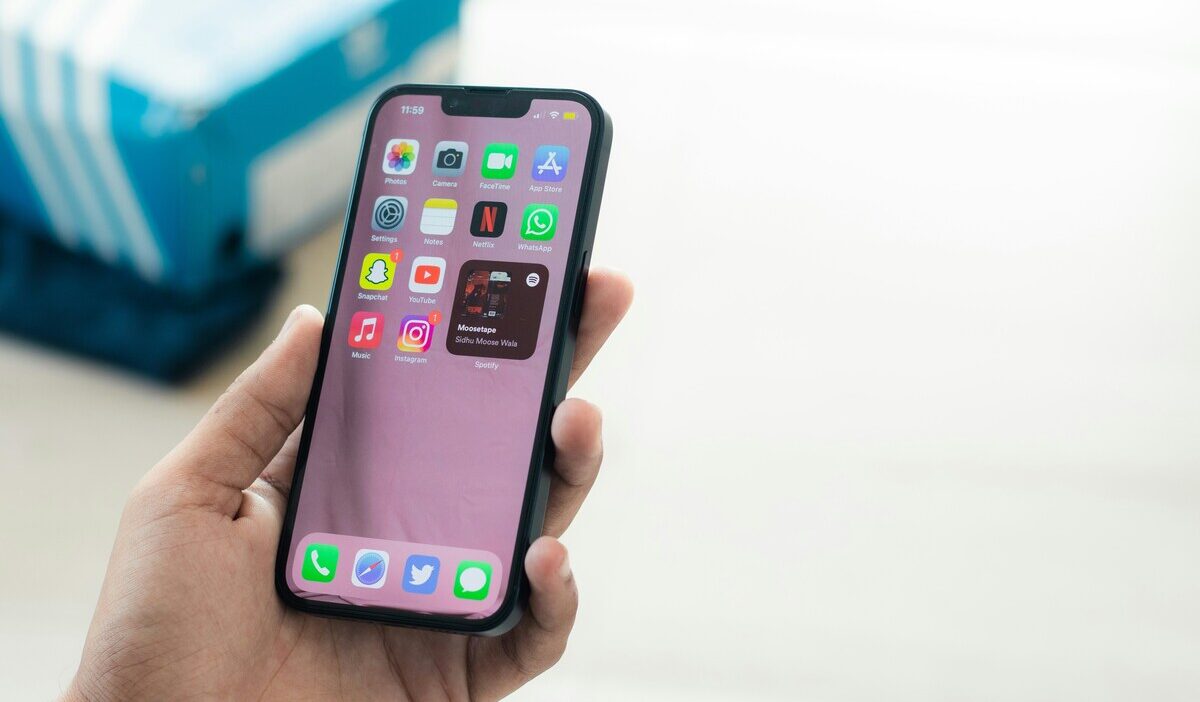
How to transfer data from Android to iPhone in 2026? Image by Pexels
Option B: Transfer without resetting (cloud method)
How to transfer data from Android to iPhone without resetting? This method moves your most important data without erasing anything on your iPhone.
- Contacts and calendars: Go to Settings > Mail > Accounts > Add Account > Google. Sign in with your Google account. Toggle on Contacts and Calendars. They sync automatically within a few minutes
- Photos: Download Google Photos on your iPhone and sign in with the same Google Account to access photos and videos that were backed up from Android. This gives you access to the library but does not automatically copy every item into the iPhone’s Photos app. You can save selected photos or move the library manually if you want local copies.
- Email: Adding your Google account in the step above also syncs Gmail automatically
- WhatsApp: WhatsApp chat history cannot normally be added to an iPhone that has already completed setup. To use the official Android-to-iPhone transfer, the iPhone must be new or factory-reset, and the transfer must be completed through Move to iOS using the same phone number.
>>> Read more: How to Transfer Data from One iPhone to Another: 3 Easy Ways.
4. What Does and Does Not Transfer
Move to iOS transfers most common personal content, including contacts, messages, photos, videos, calendars, call history, email accounts, files, folders, bookmarks, and supported WhatsApp content.
Some free apps may also transfer when they are available on both platforms and support Apple’s transfer feature. Other apps must be downloaded again from the App Store, and their data will only return if the app stores it in an online account or cloud service.
| Transfers | May Require Manual Setup |
| Contacts | Music stored directly on the Android phone |
| SMS and message history | Books and PDFs |
| Photos, videos, and photo albums | Paid Google Play purchases |
| Call history | Apps that do not support the transfer feature |
| Calendars and email accounts | App data without cloud or account syncing |
| Files and folders | Banking and authentication-app setup |
| Web bookmarks | Some account logins and permissions |
| WhatsApp messages and media | Custom ringtones |
| Voice Memos | |
| Some free apps |
After the transfer, open the App Store and download any missing iOS apps. Music, books, and PDFs generally need to be moved manually or accessed by signing in to the corresponding service.
5. Frequently Asked Questions
Q1. Can I transfer data from Android to iPhone without resetting?
Yes. You can add your Google account to your iPhone settings to sync contacts, calendars, and email. Download Google Photos on your iPhone to access your photo library. This method does not require erasing your iPhone. However, text messages and WhatsApp chats can only be transferred using Move to iOS during initial setup.
Q2. Does Move to iOS transfer WhatsApp messages?
Yes. Move to iOS can transfer supported WhatsApp chat history and media from Android during the initial iPhone setup. The destination iPhone must be new or factory-reset, and WhatsApp requires you to use the same phone number. You cannot merge the transferred Android history with chats already created on the iPhone.
Q3. How long does the Android to iPhone transfer take?
The time depends on the amount of content, the devices, and whether you use a wireless or wired connection. Small transfers may finish relatively quickly, while large photo, video, or WhatsApp libraries can take considerably longer. Keep both phones connected to power and wait for the loading bar on the iPhone to finish.
Final Words
How to transfer data from Android to iPhone? You can use the Move to iOS app during setup or through cloud services after setup.
The Move to iOS method transfers the most data in one step. If your iPhone is already set up, adding your Google account and downloading Google Photos covers most essentials without a reset.
Check the table above to see what transfers and what needs manual setup. Keep both phones charged and connected throughout the process for a smooth switch.