How to transfer data from one iPhone to another? Apple provides three main options: Quick Start for a direct wireless or wired transfer, an iCloud backup, or a computer backup through Finder, Apple Devices, or iTunes.
Quick Start is usually the most convenient option when you have both iPhones with you. It moves most of your apps, photos, messages, settings, and other content directly to the new device. This guide walks through each method step by step so you can choose the one that fits your situation.
1. Before You Transfer Data to a New iPhone
How do you transfer data from one iPhone to another? Before you transfer, you need a little preparation to help the transfer go smoothly, including:
- Keep both iPhones connected to power during the transfer. If either device shuts down or loses its connection, the process may stop and need to be restarted, but the data on your old iPhone should remain intact.
- Turn on Wi-Fi and Bluetooth on your old iPhone. Quick Start needs both to connect the two devices
- Update both iPhones if possible. Go to Settings > General > Software Update. If the backup or old iPhone uses a newer version of iOS, the new iPhone may need a software update before the transfer or restore can continue.
- Check your Apple ID. Make sure you know the email and password for the Apple ID signed in on your old phone. You will need it during setup on the new device
- Check the new iPhone’s storage capacity. Make sure it has enough space for the content you want to move. You do not need to delete files from the old iPhone unless the new device cannot hold all of them.
- Do not erase your old iPhone yet. Keep it active and nearby until the transfer is complete and you have verified everything on the new phone
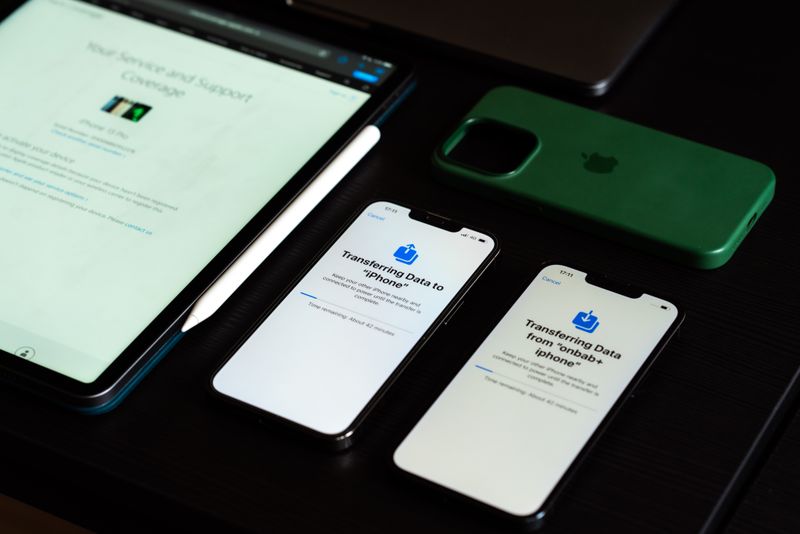
2. Transfer Data Using Quick Start
How to transfer data from one iPhone to another with a built-in way.
Quick Start is available when your current device runs iOS 11 or later. However, transferring all data directly from the old iPhone requires both devices to run iOS 12.4 or later.
The transfer time depends on the amount of content, the connection method, and network conditions. It may take several minutes or considerably longer, so avoid relying on a fixed estimate.
For a wired transfer, the required cable depends on the two iPhone models:
- Connect two iPhone 15 or later models with a USB-C charge cable.
- Connect an iPhone 14 or earlier to an iPhone 15 or later with a USB-C to Lightning cable.
- To connect two iPhone 14 or earlier models, Apple requires a Lightning to USB 3 Camera Adapter, a Lightning to USB cable, and a power adapter.
A wired connection may be useful when transferring a large amount of data, but the total time still varies.
Transfer time depends on how much data you have. A typical phone with 64 to 128GB of content takes about 30 to 60 minutes over a wireless connection.
For a faster transfer, connect both iPhones with a USB-C-to-USB-C cable (or a Lightning-to-USB-C adapter for older models). The wired option appears during the Quick Start flow and can cut the transfer time significantly.
Do not separate the phones or disconnect power during the transfer. If either phone loses connection, you may need to start the process over.
>>> Read more: How to Pair Apple Watch to New Phone: Step by Step Guide
3. Transfer Data Using iCloud Backup
How to transfer data from one iPhone to another iPhone using iCloud backup? If your old iPhone is already erased or not available nearby, you can restore from an iCloud backup instead. First, back up your old iPhone to iCloud. Then, during the new iPhone setup, select Restore from iCloud Backup and sign in with your Apple ID. Your apps, photos, and settings will download over Wi-Fi.
On your old iPhone (before switching):
- Go to Settings > tap your name > iCloud > iCloud Backup
- Tap Back Up Now and wait for it to finish
- Make sure you have enough iCloud storage for the full backup. Check in Settings > your name > iCloud > Manage Storage
On your new iPhone (during setup):
- Follow the setup screens until you reach Apps & Data
- Select Restore from iCloud Backup
- Sign in with your Apple ID
- Choose the most recent backup from the list
- Stay connected to Wi-Fi until all apps and data finish downloading
Note: Every Apple Account includes 5GB of free iCloud storage. However, when preparing to move to a new iPhone, Apple may provide enough temporary iCloud storage to create a transfer backup at no additional cost.
On the old iPhone, go to Settings > General > Transfer or Reset iPhone. Under Prepare for New iPhone, tap Get Started and follow the instructions.
You can also upgrade to iCloud+ if you want to keep the additional storage after the transfer, but purchasing a plan is not always necessary just to move to a new device.
4. Transfer Data Using a Mac or PC Backup
How to transfer all data from one iPhone to another using a Mac or PC? If you prefer a local backup or do not have enough iCloud storage, you can use a computer instead.
On a Mac (macOS Catalina or later):
- Connect your old iPhone to your Mac with a USB cable
- Open Finder and select your iPhone in the sidebar
- Click Back Up Now. Check the box for Encrypt local backup if you want to include passwords and Health data
- Wait for the backup to finish
On a PC (or older Mac):
- Open iTunes and connect your old iPhone
- Click the phone icon, then click Back Up Now
- Enable encryption of local backup for a complete backup
To restore on your new iPhone:
- Connect the new iPhone to the same computer
- Select Restore Backup in Finder or iTunes
- Choose the most recent backup and wait for it to finish
This method is useful when you have a large amount of data or do not want to rely on iCloud storage.
The backup is restored from your computer through a cable, but your new iPhone may still need an internet connection for activation, downloading apps and purchased content, and syncing information stored separately in iCloud.
5. What if You Are Moving from Android to iPhone
If your old phone is an Android device, you cannot use an iPhone iCloud backup or the standard iPhone-to-iPhone Quick Start transfer.
For most Android phones, use Apple’s Move to iOS app from the Google Play Store. However, supported devices running a compatible version of Android 17 may be able to transfer data directly during iPhone setup without installing the app.
During the initial iPhone setup, open the Transfer Your Apps & Data screen and select From Android. Follow the prompts to connect the phones, then choose the content you want to move.
Depending on the devices and the method how to transfer data from one iPhone to another, supported content can include contacts, messages, call history, photos, videos, calendars, mail accounts, files, folders, WhatsApp content, and some settings. Music, books, and PDFs may still need to be moved manually.
>>> Read more: How to Transfer Data from Android to iPhone: With or Without Resetting.
6. What Data Does and Does Not Transfer
Beside learning how to transfer data from one iPhone to another iPhone, you should know what data can be transferred and what cannot.
Quick Start and iCloud transfers copy most data, including apps, photos, messages, contacts, calendars, settings, and saved Wi-Fi passwords. However, some items require manual setup on the new phone. Apple Pay cards must be re-added. Banking and authentication apps usually require you to log in again.
If you have an Apple Watch, back up the old iPhone and keep the watch unlocked and nearby during setup. The new iPhone may offer to transfer the watch automatically. You only need to unpair it manually if the transfer does not complete or the new iPhone asks you to start pairing again.
| Transfers automatically | Requires manual setup |
| Apps and app data | Apple Pay cards (re-add) |
| Photos and videos | Banking app logins |
| Messages and call history | Two-factor authentication apps |
| Contacts and calendars | Apple Watch (unpair and re-pair) |
| Saved Wi-Fi passwords | Some DRM-protected content |
| Home screen layout | Certain app-specific settings |
| Accessibility settings | — |
With that clear, you can now perform how to transfer data from one iPhone to another at ease.
7. Frequently Asked Questions
Q1. How do I transfer all data from one iPhone to another?
Use Quick Start for the most complete transfer. Place both iPhones next to each other, scan the animation, enter your passcode, and tap Transfer from iPhone. This method copies apps, photos, messages, settings, and most other data in one step.
Q2. What is the fastest way to transfer data between two iPhones?
A wired Quick Start transfer can be faster and more stable when moving a large amount of data, although Apple does not guarantee one method will always be fastest.
Use a USB-C cable when both phones are iPhone 15 or later. Other combinations require a USB-C to Lightning cable or, for two Lightning iPhones, additional Apple adapters. Transfer speed still depends on the devices and amount of content.
Q3. Should I erase my old iPhone after the transfer?
Wait until you have verified that everything transferred correctly to your new phone. Open a few apps, check your photos, and confirm your messages are all there. Once you are satisfied, go to Settings > General > Transfer or Reset iPhone > Erase All Content and Settings on the old device.
Final Words
How to transfer data from one iPhone to another? You can use it in three ways: Quick Start, iCloud backup, or a computer backup through Finder or iTunes. Quick Start is the easiest for most people and copies nearly everything in one step. If your old iPhone is not available, iCloud backup works well too.
Whichever method you choose, keep both phones plugged in and connected until the process completes. After the transfer, check your Apple Pay, banking apps, and Apple Watch to finish setting up your new device.